Free
$0USD / month
A clear starting point
- 1 active widget with inline layout
- Default delivery policy included
- 2 AI assistance requests per month
 Arrival StudioSubmitted for Shopify review
Turn your shipping policy into an estimated arrival window.
Shape the design, test the dates, and publish with confidence.
Installation available after Shopify approval.
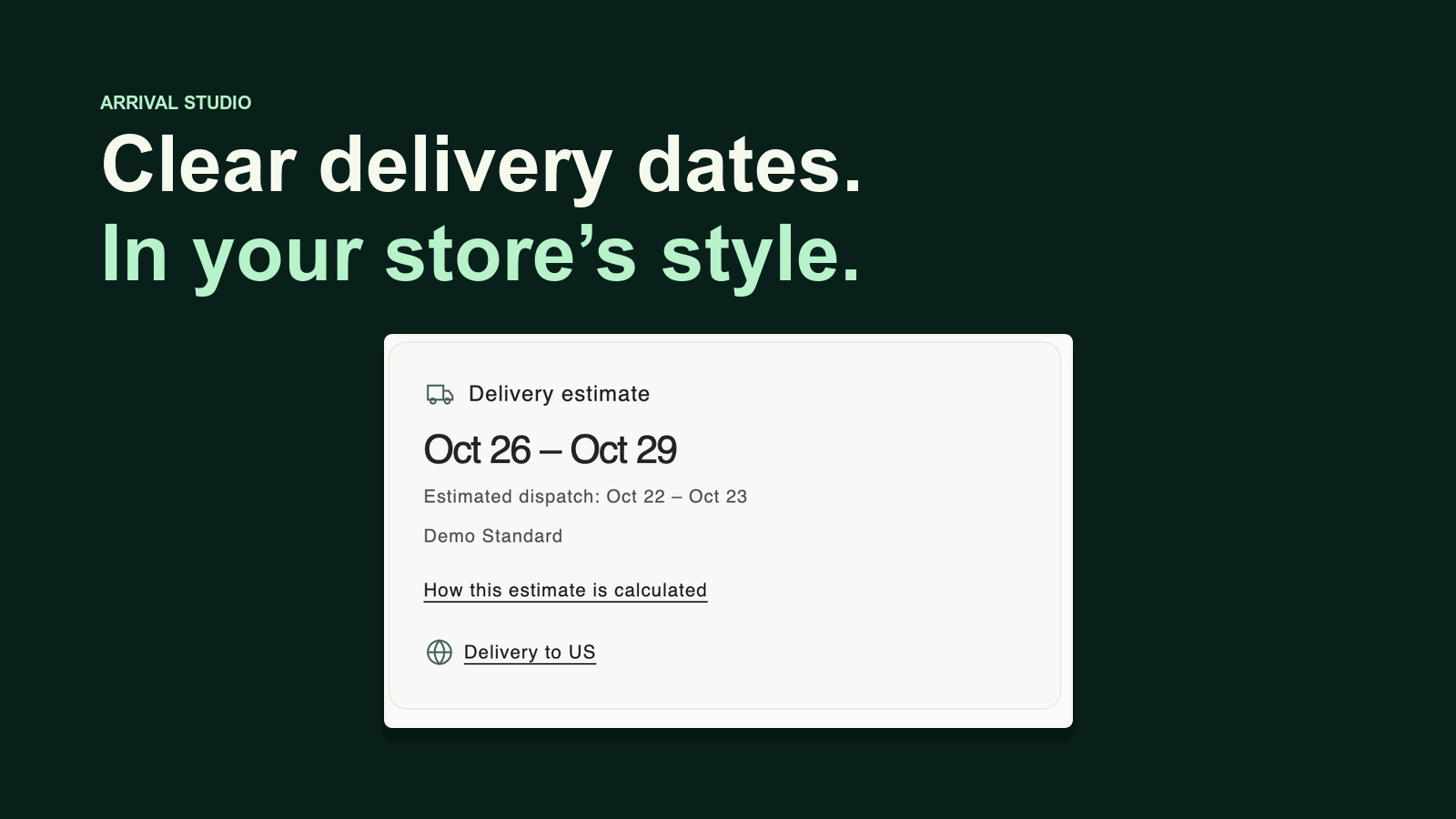
FROM SHIPPING RULES TO STOREFRONT
The essentials in one editor.
More control when you need it.
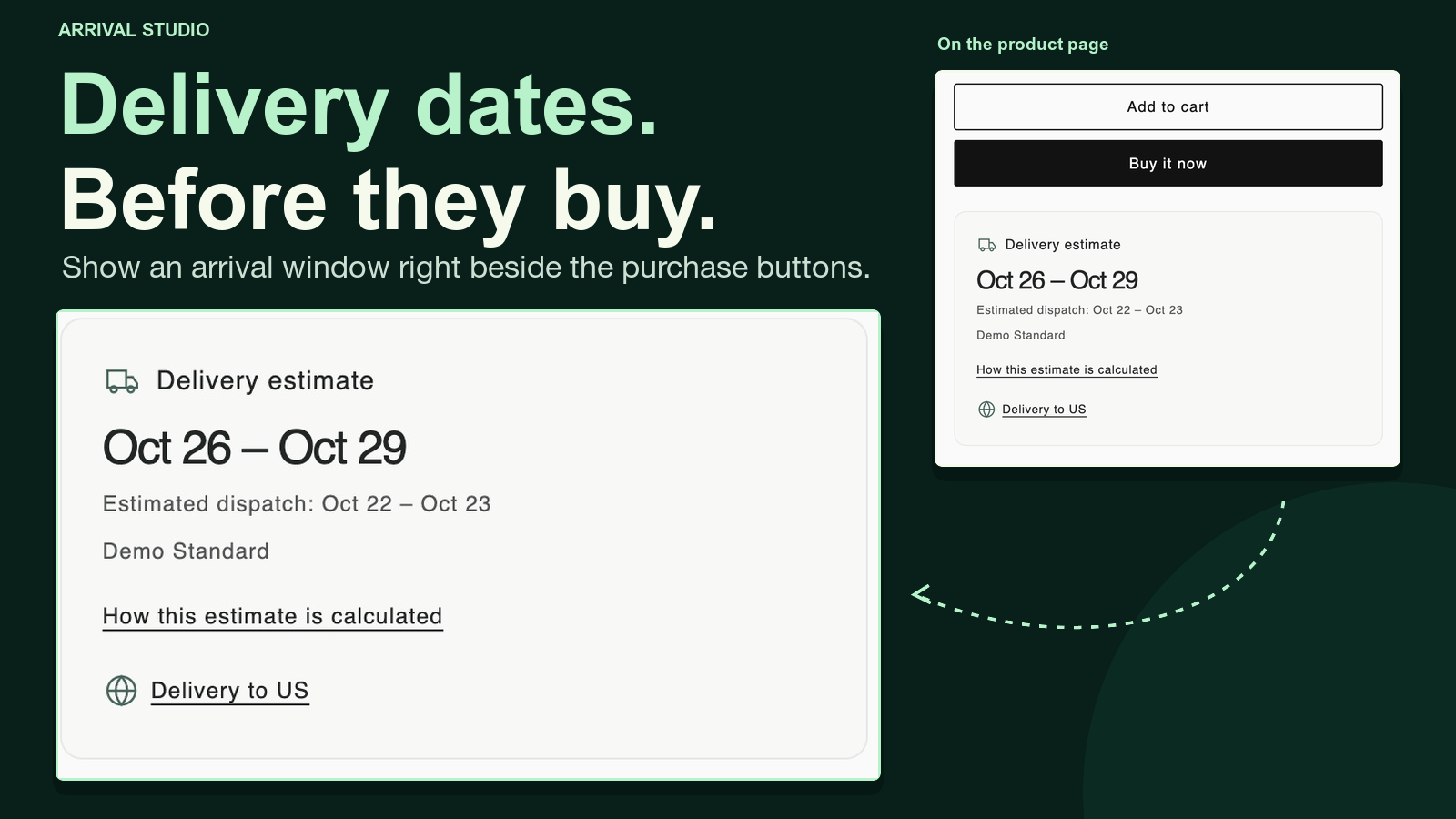
Show an estimated arrival window beside the purchase buttons, where shoppers are making their decision.
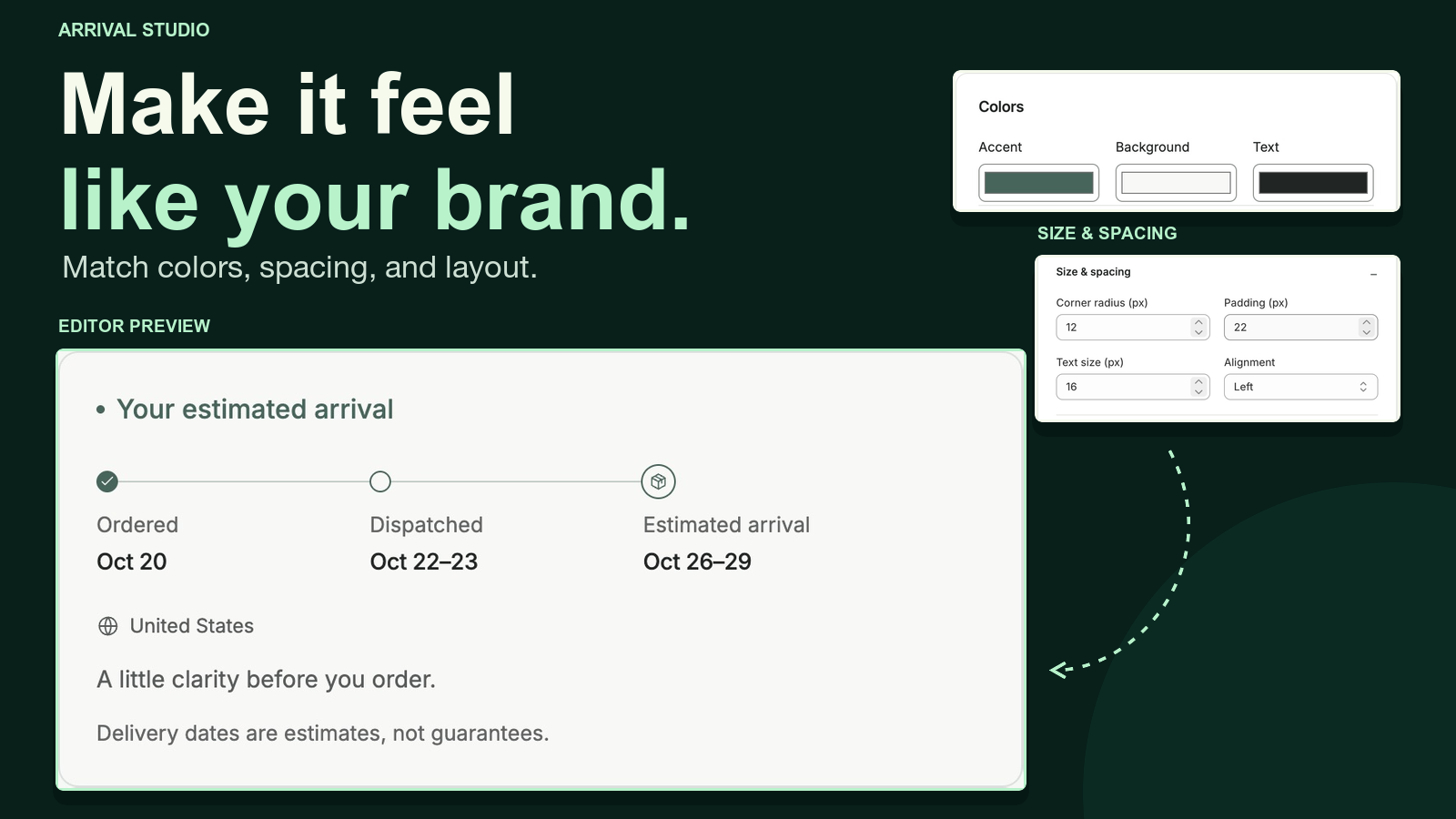
Choose a layout, adjust colors and spacing, and compare the preview on desktop and mobile.
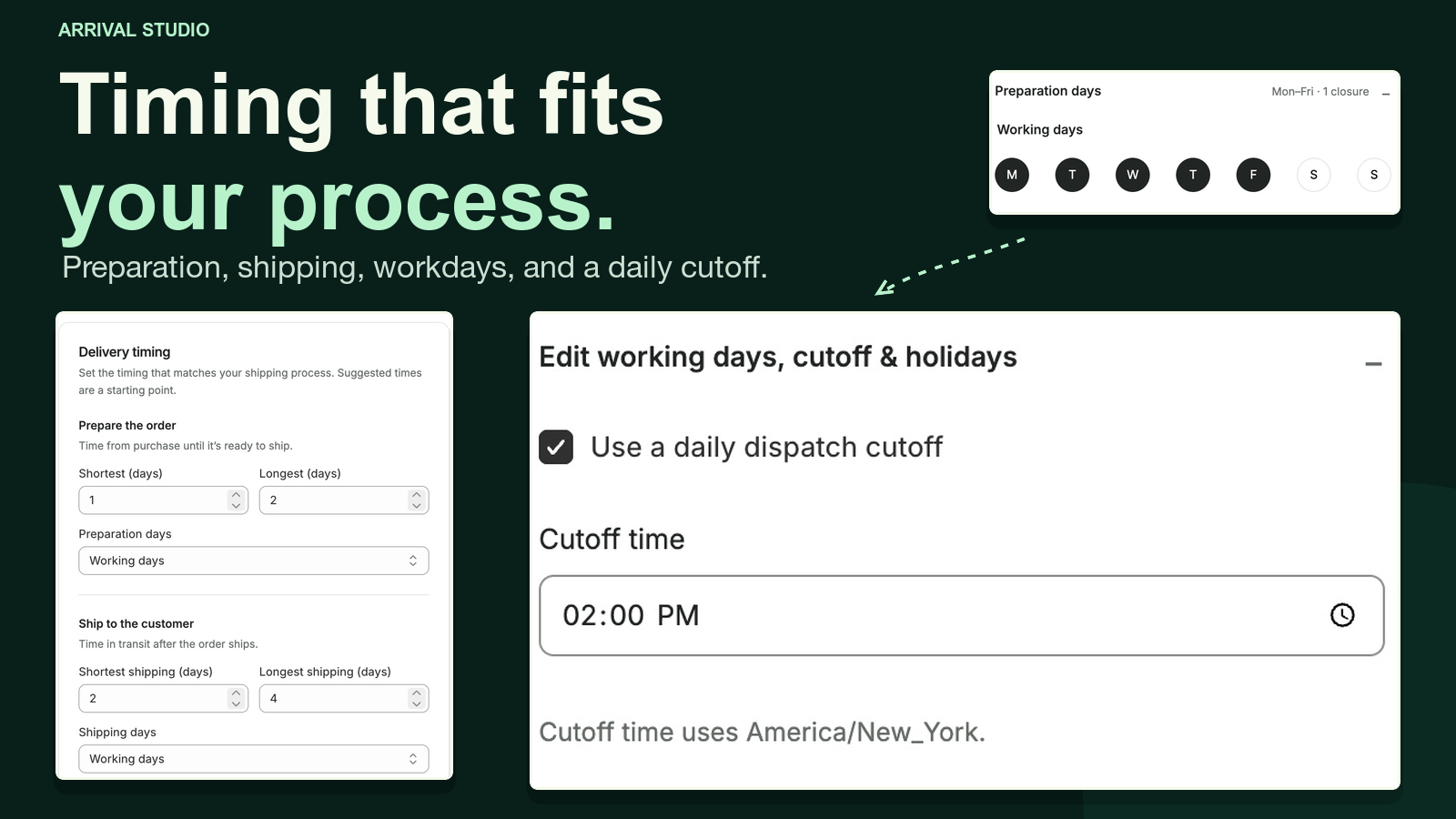
Set preparation and transit ranges. Add working days, holidays and an optional origin-local cutoff.
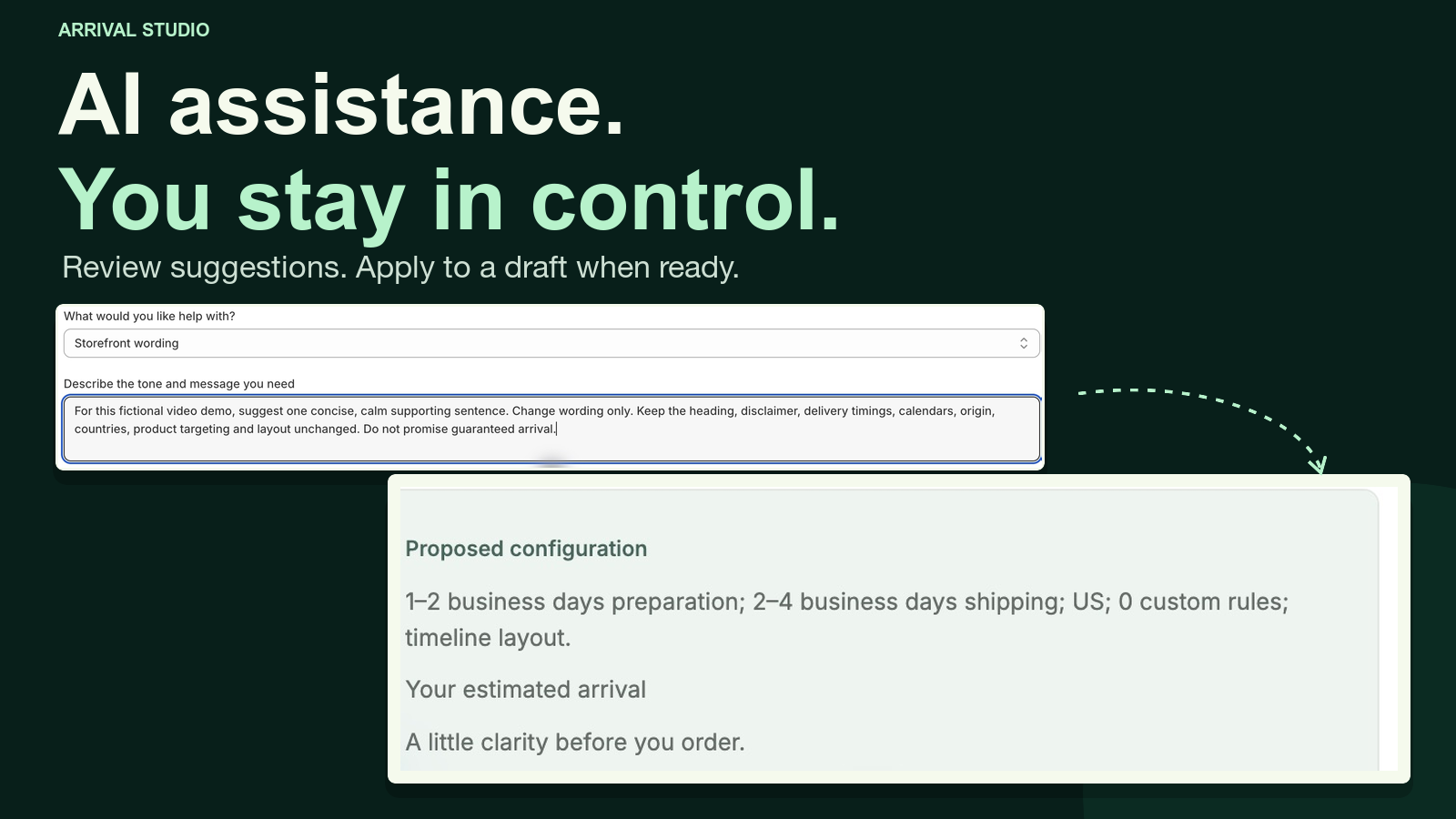
Ask for help with wording or configuration. Compare the proposal, approve a draft, and publish separately.
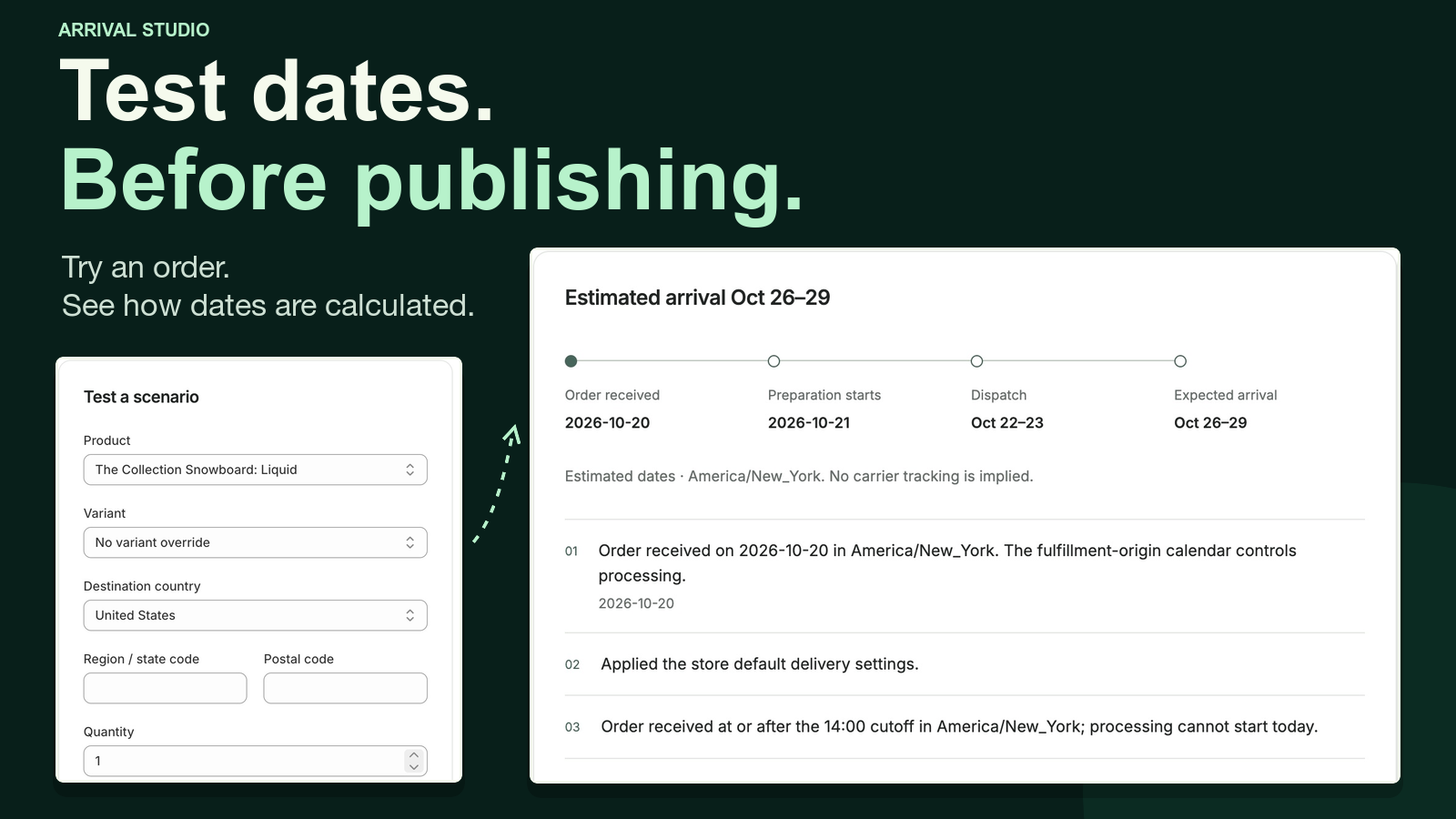
Try a product, destination and order time. Follow the calculation through preparation, dispatch and arrival.
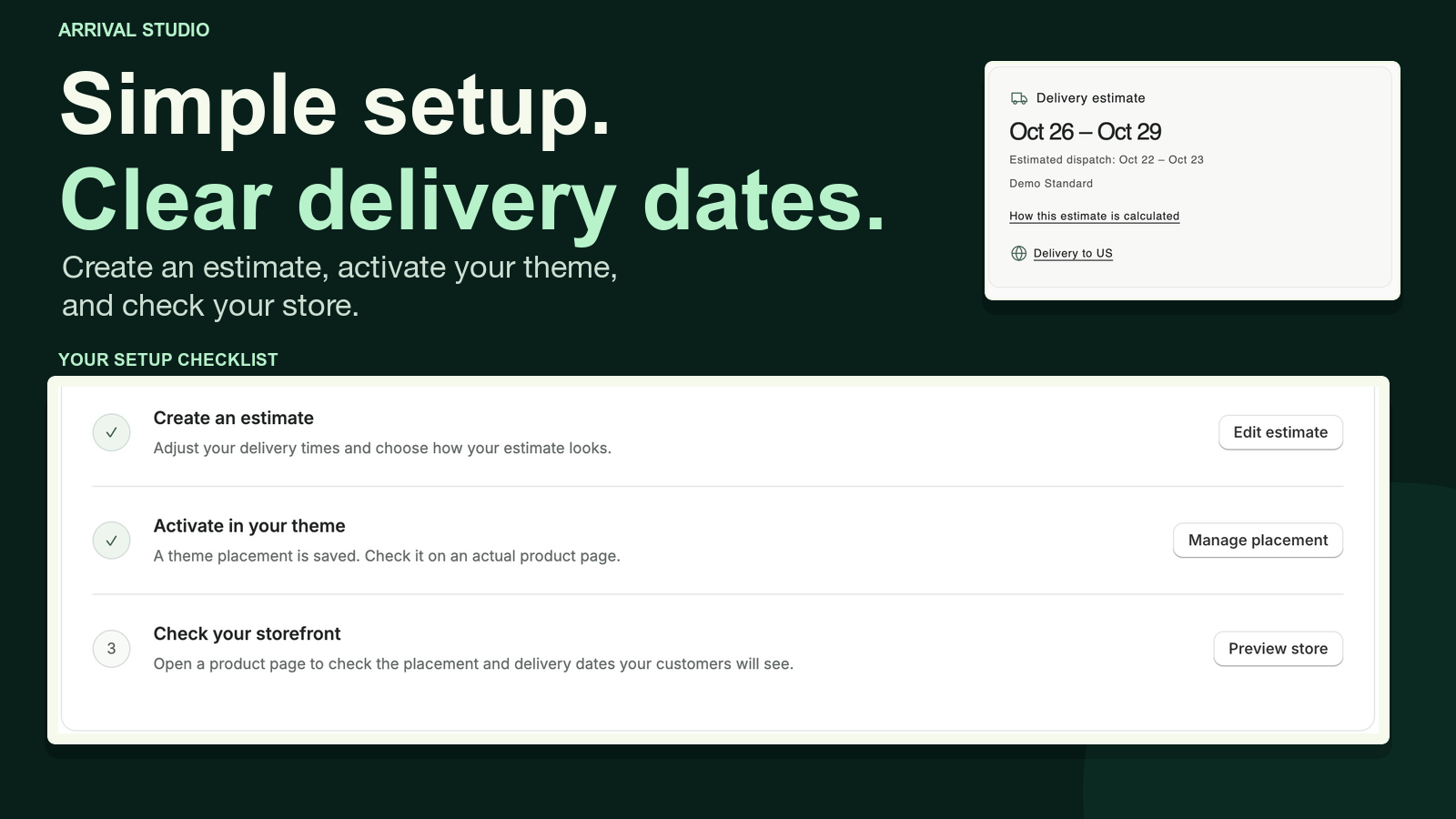
Create an estimate, save its placement in Shopify, then check the actual storefront.
A SHORT PATH TO YOUR STORE
Keep the first estimate simple.
Refine the details as you grow.
Confirm your preparation and transit times, destinations and working days. Choose a design and test your dates before publishing.
Open Shopify’s theme editor, position the Arrival Studio block or enable the embed, then click Save. Usually, no code or widget ID is needed.
Preview a real product and destination. Confirm the estimate appears where you expect, then refine the design or shipping rules as needed.
Publishing your estimate and saving its Shopify theme placement are separate steps. Theme activation is a one-time setup.
SEE THE ACTUAL APP
7:49 narrated walkthrough.
From your first estimate to the storefront.
Real demonstration-store captures · AI-generated narration · English captions
Download transcript ↗Welcome to Arrival Studio. This walkthrough uses an AI-generated voice and a real demonstration store. The shipping rules are fictional examples, and every delivery date is an estimate, never a guarantee. Home gives you three steps: create an estimate, activate it in your theme, and check the storefront.
Create estimate opens a private draft in one editor. Delivery, Content, Design, and Placement keep the essential work together. We use a separate demonstration estimate, preserving the store’s existing published configuration.
Start with the shortest and longest preparation and shipping times. New drafts suggest one to two working days for preparation and two to four for shipping. These are starting suggestions, not discovered carrier promises. Confirm destinations, the fulfillment location, and Standard delivery. An origin timezone inherited from the store is an assumption to review. Multiple locations require a choice.
Expand the schedule for separate preparation, dispatch, and shipping calendars. New drafts begin Monday through Friday with no cutoff. Set an origin-local cutoff if your process needs one. Add holidays, annual days off, or date-range closures. Existing estimates retain their saved settings.
Advanced delivery rules handle product exceptions and destinations. Choose real products, variants, collections, or tags, then review the applicable preparation and shipping overrides. Priority helps distinguish overlapping rules; conflicting equal-priority policies need attention. Preorders and backorders require an actual merchant-confirmed availability date before an estimate can rely on that release.
In Placement, product targeting narrows where the estimate applies. Exclusions take priority, and physical delivery estimates exclude digital products. Advanced options and limits depend on your plan. Leave restrictions empty when your policy covers all eligible shippable products.
Content controls the heading, supporting message, and delivery note. Keep the estimate disclaimer visible. Destination and cutoff displays are optional; a countdown needs a configured cutoff and an eligible calculation. Translated storefront copy lets you customize supported languages. Storefront dates follow the shop’s active language, rather than guessing language from the destination.
Design offers Minimal inline, Arrival timeline, Delivery card, Compact badge, Delivery bar, and Detailed steps. Choose colors, spacing, and typography while watching the preview. Select a real product and destination, then compare desktop and mobile presentation. Appearance changes do not change the calculation rules.
Save draft keeps work private. When ready, Publish opens a short review of your current edits: timing, calendars, cutoff, destinations, origin, shipping method, and placement. Resolve any highlighted issues. Confirm and publish approves those exact assumptions, saves all of these settings together, and creates one new published version. A separate draft save is unnecessary.
Publication checks the store, current revision, configuration, and plan limits. Published history preserves immutable snapshots. Review an earlier version before choosing to restore it; restoration requires confirmation and creates another published snapshot. Here, the original store estimate remains untouched.
Placement chooses product, cart, floating, or compatible collection positions. Product pages are the simple starting point. Open the Shopify theme editor, position the app block, and click Save. That one-time Shopify save is required; publishing the estimate alone does not install a theme placement.
Usually, no widget ID needs copying: a blank binding automatically selects an eligible published estimate for the product and destination. More options includes cart, floating, and an optional specific-widget binding. Returning triggers a saved-placement check. Always preview the actual storefront, because saved placement does not prove every context receives dates.
The Delivery simulator tests a selected product and variant, destination, quantity, and order time entered in UTC. Follow the explanation from order date through preparation, dispatch, and estimated arrival. Inspect matched rules, timezone, and approved assumptions. These are hypothetical inputs for checking policy behavior, not a carrier tracking event or a live inventory audit.
Switch between the saved draft and current published configuration to understand which version you are testing. Save a named draft scenario for repeatable checks, or reopen recorded inputs. Missing information and conflicting rules produce explanations instead of invented dates.
These storefront shots show the store’s separate, existing published policy, not our new demonstration settings. Choose a variant using the product page’s actual controls, then change quantity in the cart. Shopify rejects quantities that exceed available stock. Arrival Studio also withholds dates when a selection cannot be supported. Use a valid quantity, then check the resulting estimate. Expand calculation details or destination controls where they are enabled.
The cart estimate accounts for all physical lines, rather than promising a date for only one item. Unsupported selections show a neutral unavailable state. This demonstration stops before checkout; it does not create an order or change the store’s inventory.
Arrival Intelligence is optional. Settings explains the selected policy excerpts, catalog information, and delivery configuration shared with the AI provider. Enable sharing only if you choose to use assistance. Server-side consent, plan allowances, and budget guards apply. Smart Setup can suggest configuration, while requests can help with delivery rules or storefront wording. Select the demonstration widget before requesting a proposal.
Load the proposal for review. Compare the current and proposed configuration, expand the complete settings, and inspect evidence and assumptions. Explicit approval applies the reviewed suggestion only to the draft; it never publishes automatically. Stale suggestions need a fresh review. Return to simulation and publication when satisfied. If assistance is unavailable, manual editing remains available.
The Delivery Promise Auditor checks the selected widget for missing settings, conflicts, and unsupported promises. Findings include evidence and review states. Optional AI policy comparison is separate from deterministic configuration checks. Pro includes a weekly published-promise schedule; optional AI review still needs consent, availability, and quota. Enabling a schedule is not proof a job has run. Inspect recorded results.
Settings shows Free, Starter, Growth, and Pro, with their monthly prices and feature limits. Manage subscriptions through Shopify’s hosted plan selector; no purchase is needed for this walkthrough. Privacy and data provides an export of stored configuration and assistance records, excluding authentication tokens. Read the privacy policy and terms, or contact support with the affected widget and reproduction steps. Keep credentials private. Your reviewed policy, explicit publication, and real storefront check complete the setup.
ROOM TO GROW
Four monthly plans.
Billing through Shopify when available.
$0USD / month
A clear starting point
$6.99USD / month
More room for your brand
$12.99USD / month
For more delivery scenarios
$24.99USD / month
For a broader delivery setup
Free includes the Minimal inline layout. Starter, Growth and Pro include all six designs. AI assistance is optional, subject to monthly allowances and availability, and requires your review. Installation and plan selection will be available after Shopify approval.
HERE WHEN YOU NEED US
Need a hand with Arrival Studio?
ecommlist@gmail.com ↗Include what you were trying to do and your store’s public URL. Keep passwords, API keys and customer data private.
Arrival Studio has been submitted for Shopify review. Installation will be available after Shopify approval. You can explore the screenshots, plans and narrated tour here now.
Estimates use your confirmed preparation and shipping ranges, working calendars, holidays, cutoff, destination and applicable product rules. They describe your configured policy; they are estimates, not guaranteed arrival dates or carrier tracking.
Usually, no. A blank widget binding automatically selects an eligible published estimate. Open the Shopify theme editor, add the Arrival Studio block or enable a supported embed, and click Save. This one-time Shopify save is required. You can choose a specific widget in the advanced settings when needed.
Yes. Manual configuration remains available. AI assistance is optional and requires your consent before selected policy excerpts, catalog information and delivery settings are shared for suggestions. Requests are subject to plan allowances and availability. You review proposals before applying them to a draft; they never publish automatically.
Saved draft changes remain private. Publishing opens a review of your timing, calendars, destinations, origin and placement. Confirming creates a new published version. You can review earlier published versions before restoring one.
Arrival Studio supports product, cart, floating and compatible collection placements. Theme support and saved placement matter. The cart estimate considers all physical lines, and unsupported selections show an unavailable state rather than invented dates. Check the actual storefront after saving your theme.
ARRIVAL STUDIO BY ECOMMLIST
Explore the workflow while Shopify reviews the app.