Start with what shoppers should see
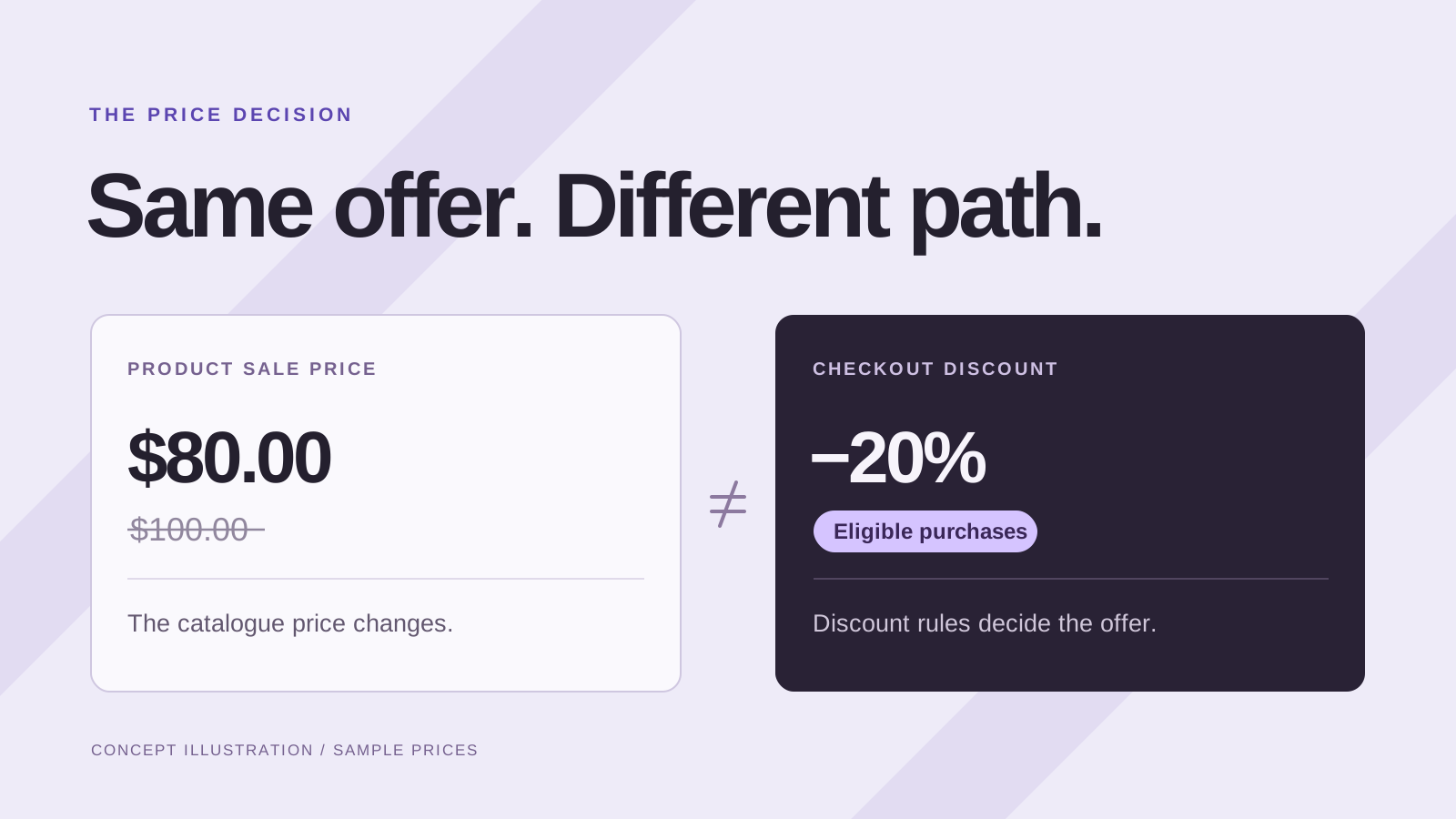
Before you schedule anything, write one sentence describing the offer: “These selected bag variants will cost 20% less from Friday morning until Sunday evening.” Then decide where that saving should appear. A promotion applied in the cart and a lower catalogue price are different workflows, even when both produce the same final amount.
Shopify’s native amount-off discounts support start and end dates. They can be a good fit for a conditional offer that should apply when a basket qualifies. Follow Shopify’s amount-off discount instructions, including the store timezone and eligibility settings. You do not need a separate scheduling app for every promotion.
If the goal is a product page showing a lower price beside a higher comparison price, consider a scheduled price-change workflow. Our sale price versus automatic discount guide helps you choose before you build the campaign.
Make a brief that someone else could execute
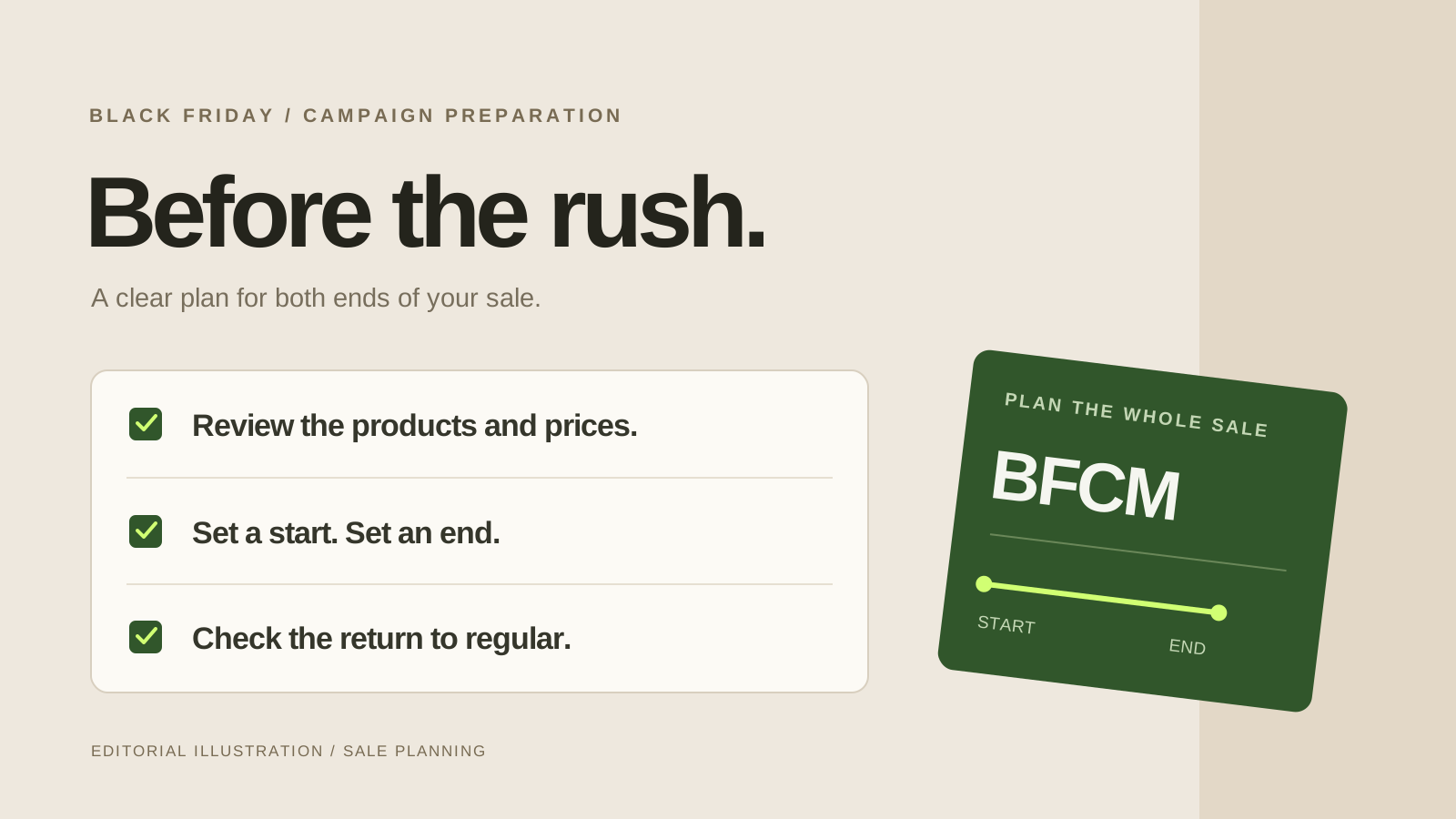
A useful campaign brief fits on one page. Record the campaign name, included variants, excluded variants, discount percentage, start and end timestamps, timezone and the person responsible for checking the results. Add the destination for each banner or email link. “Weekend sale” is a label; “20% off Stone and Clay Weekenders, excluding Midnight” is an executable instruction.
Use variant identifiers or SKUs beside names when possible. Two colours can share a product title while having different stock levels, current prices or existing promotions. Decide what happens to already discounted items before the review, rather than discovering the overlap after the campaign begins.
Keep a reference copy of the starting catalogue. Shopify supports a product CSV export, including selected or filtered products. Treat that file as a dated reference. Restoring it blindly later could replace legitimate changes made after the export.
Review the price pair, not just the percentage
For a fictional bag priced at $128, a 20% reduction produces $102.40. Check that proposed number beside the current price, the comparison price and any price floor you use. Repeat the check on the least expensive variant and a variant already on sale. A percentage that looks sensible on the flagship product can be unsuitable elsewhere.
For catalogue sale pricing, Shopify uses a lower selling price and a higher compare-at price; the theme controls their storefront presentation. See Shopify’s sale-pricing documentation. A comparison field is not a reason to invent an inflated reference price.
Also check the cart with an existing welcome code or automatic offer. A catalogue price change does not itself describe how your other promotion rules behave. Write down the expected customer total before you test it, so you can compare an actual result with a clear answer.
Schedule a reviewed campaign with SaleSwitch
SaleSwitch, our Shopify app, is designed for scheduled percentage price changes. Choose products and individual variants, or start from a snapshot of an existing collection. Give the campaign a name, set the percentage and dates, then review every proposed change before approving it. Products added to the source collection later do not silently join that campaign.
- Select the intended variants and leave already-on-sale items excluded when that matches your brief.
- Enter start and end dates. Check the browser timezone beside the fields and the store timezone during review.
- Choose optional countdown and sale-collection settings, then inspect the original and proposed prices.
- Approve the reviewed campaign and follow its results in Your sales.
The stored review expires after 15 minutes. Revisit the review if your selection or prices change. At the scheduled time, updates are queued; larger campaigns can take a few minutes, so plan monitoring around the launch rather than promising an exact-second catalogue switch. Optional Pro AI creates an editable draft and cannot approve the campaign for you.
Give launch and restoration their own checks
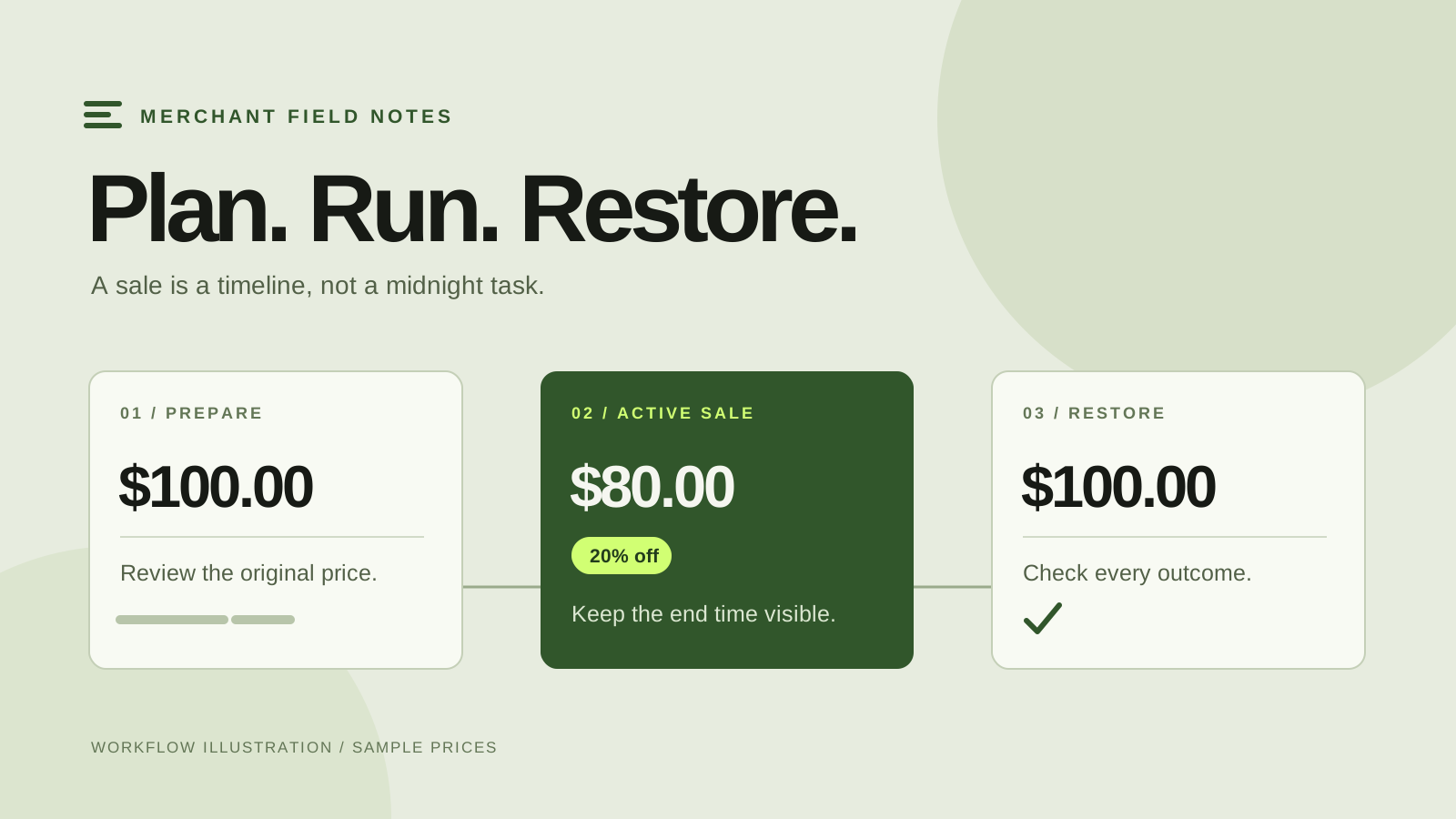
Check one included variant and one excluded variant after the start. Open a product page, follow the advertised collection link, and confirm the expected price in the cart. Record any failed or skipped items before you send more traffic to the offer. A banner looking correct is not evidence that every intended price changed.
At the end, check campaign outcomes and sample the same variants again. SaleSwitch restores acknowledged price changes while the prices still match what it applied. Later merchant edits are preserved and flagged for review instead of being overwritten. If a teammate intentionally changes $102.40 to $99 during the sale, treat that flagged row as a decision for the team.
End active sales and check restoration before uninstalling. If you added a countdown, save its placement separately in the theme editor and verify that it disappears after the campaign. If you created a sale collection, check both its remaining contents and any navigation links your team added.
Rehearse small, then reuse the process
Use a small, deliberately chosen selection for the first campaign. Include a normal variant, an excluded variant and, if relevant, a variant already on sale. Run through preparation, review, launch and ending with the person who will monitor the real promotion. A rehearsal is most useful when it proves the exceptions, not just the happy path.
You can explore the sequence without connecting a store in the fictional SaleSwitch demo, or watch the campaign walkthrough. The current Free plan includes two scheduled sales per UTC month and up to 50 variants per sale. Pro is $9.99 USD per month with unlimited scheduled sales, up to 200 variants per sale and 20 AI draft requests per UTC month.
After the real campaign, save its brief and note any unexpected exclusions or cleanup work. That record gives the next sale a better starting point than a fresh spreadsheet of guesses. For a larger seasonal event, use the Black Friday sale checklist.