The short answer: catalogue price or conditional offer?
Use a sale price when your intention is to change what selected variants cost in the catalogue. Use an automatic discount when you want Shopify to apply an offer to an eligible basket. Use a discount code when entering or sharing a code is part of the promotion. Start with that distinction before comparing scheduling tools.
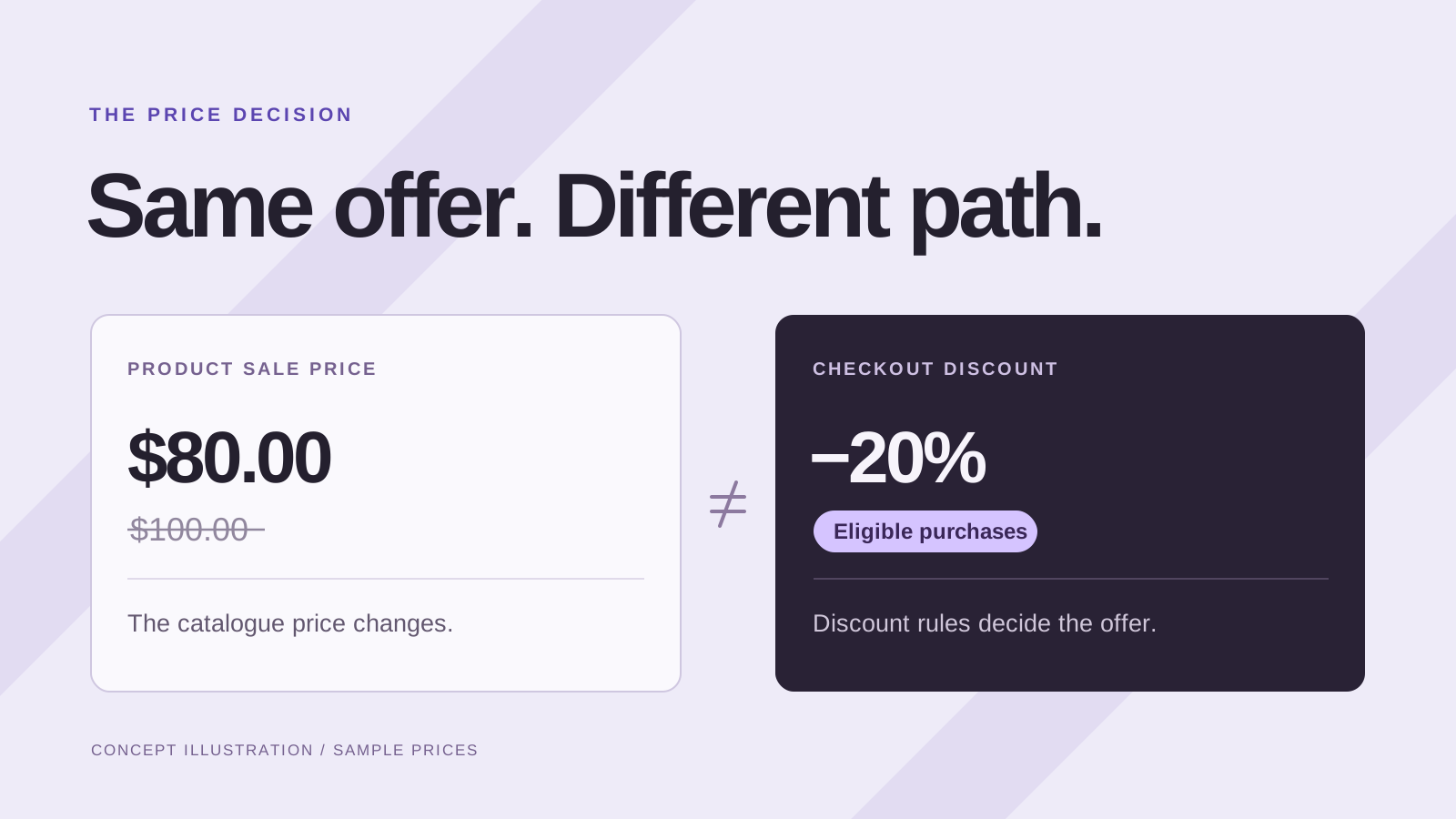
According to Shopify’s sale-pricing guide, a lower Price and a higher Compare-at price can appear together on product and collection pages, with presentation controlled by the theme. Checkout shows the selling price. This catalogue mechanism is separate from a discount rule.
Neither method is universally better. A public weekend markdown, a subscriber offer and a spend-threshold promotion are different jobs. Pick the mechanism that expresses the offer clearly, then test the complete path from the page where the customer lands to the amount they see in the cart.
Compare the methods by the job they do
| Your intended offer | A useful starting point | What to verify |
|---|---|---|
| Selected variants have a lower public price | Catalogue sale prices | Every intended variant, comparison display and restoration plan |
| An eligible basket receives an offer automatically | Automatic discount | Eligibility, conditions, active dates and the final cart total |
| Customers enter a campaign or audience code | Discount code | Who can use it, usage rules, timing and the redemption journey |
Shopify’s discount FAQ explains that discounts apply in the cart and at checkout. Do not assume creating one will also create a crossed-out catalogue price on the product page. Check the storefront presentation separately.
For example, a small clearance range may benefit from an obvious public markdown that customers can compare while browsing. A “buy enough to qualify” campaign needs its condition to remain visible, so a customer understands why their basket has or has not received the offer.
Calculate the real total before combining offers
Suppose an item normally costs $100. You reduce its catalogue price to $80. If an eligible additional 10% discount applies to that $80 selling price, the customer pays $72 before taxes or shipping. The total reduction from the original $100 is 28%, not 30%. This is a price markdown followed by one percentage discount; it is not a universal formula for every combination of Shopify discounts.
What happens when the offers overlap?
Try two percentage reductions in sequence. Enter amounts in your store’s currency.
Illustrative arithmetic, rounded to two decimals at each price step. It does not check Shopify eligibility or model tax, shipping, fixed discounts or a currency’s rounding rules. Your entries stay in this page and are not sent to Analytics.
Use the calculator to explore that specific scenario, then verify the real offer in your store. It does not decide Shopify eligibility, include shipping, calculate tax or model every promotion type. A result that looks attractive to shoppers still needs to work with your product costs and campaign goals.
Shopify has distinct rules for combining discount classes. Multiple percentage order discounts, for example, are calculated differently from the sequential markdown example above. Review the actual settings rather than adding two advertised percentages together or assuming all discounts are blocked by a sale badge.
Choose the workflow you can operate reliably
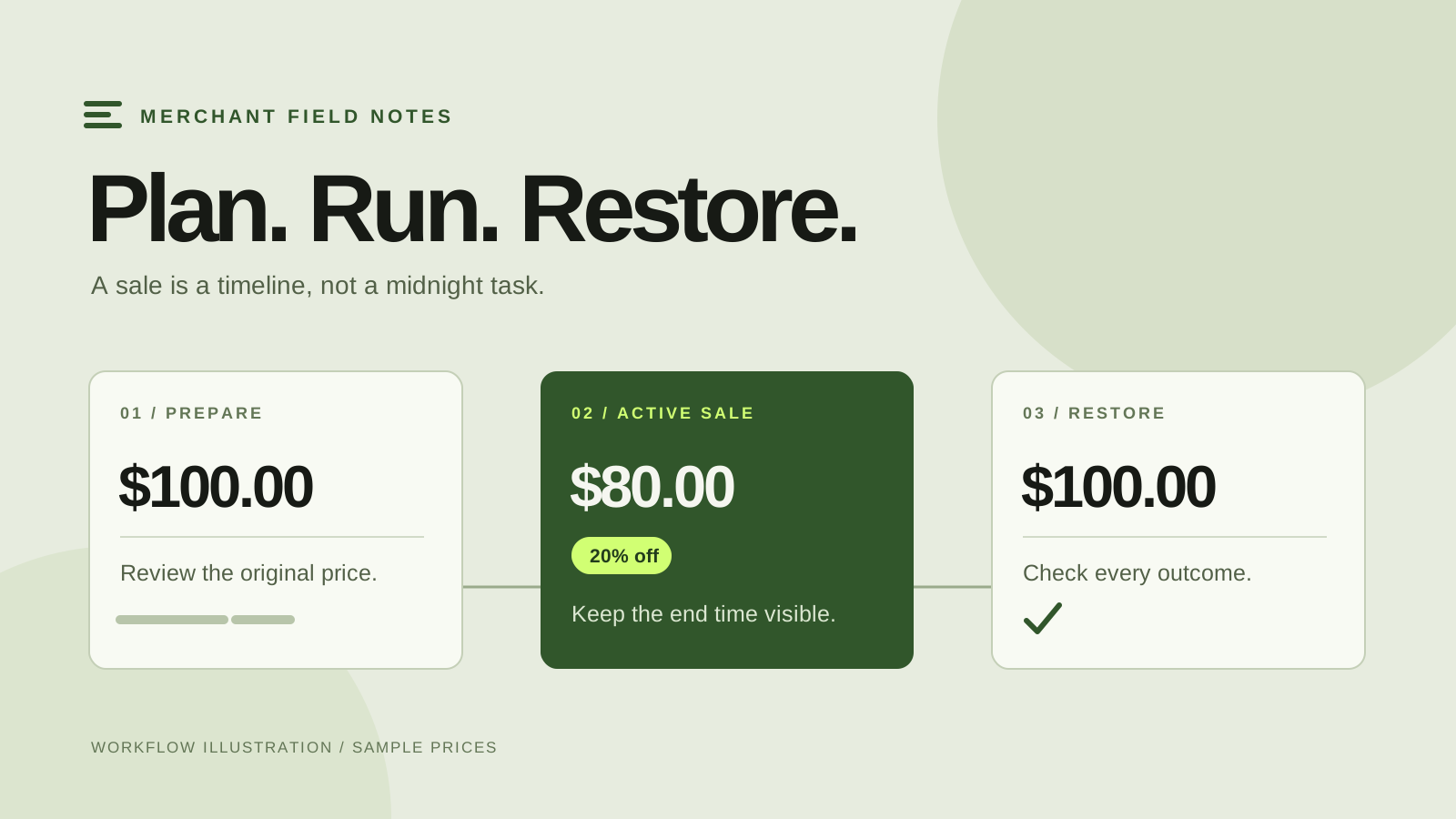
With catalogue changes, the operating task is to know which price pairs changed, when they should return and how to handle legitimate edits made during the campaign. With discount rules, the task is to keep eligibility, active dates and any combinations aligned with the offer you advertised. Both need a deliberate ending.
Write a small test matrix before launch: an eligible item alone, an excluded item alone, a mixed basket, and a basket using a code you already promote. If the campaign has a minimum purchase condition, test immediately below and at that threshold. Add a different customer or market context when those are part of the actual offer.
Record the expected item subtotal for each case. Keep tax and shipping separate during this comparison so a delivery charge does not hide a pricing error. Then check the entire customer total before calling the promotion ready. A screenshot of the headline is not a substitute for these examples.
Where SaleSwitch fits
SaleSwitch is our app for scheduled percentage changes to selected product and variant prices. It helps you review original and proposed prices, set a campaign window, follow results and restore acknowledged changes that still match the applied sale prices. It flags later price edits for review. It does not create discount codes or configure Shopify’s automatic-discount rules.
That makes it a relevant option when you want a scheduled catalogue markdown with an optional sale countdown and dedicated collection. A collection selected as the starting point becomes a snapshot for that campaign; future additions do not automatically join. Review the selected variants even when the product names look familiar.
If the campaign instead depends on customer eligibility, cart thresholds or code redemption, begin with Shopify’s discount tools and verify the settings for that offer. You can read the scheduling workflow once you know which mechanism you need. Avoid layering both systems unless you have intentionally tested the resulting price.
Answer three questions before you launch
- Where must the saving be visible? List the collection card, product page, cart and checkout rather than assuming they all tell the same story.
- What exactly makes the item or basket eligible? Record variants and exclusions for a catalogue markdown, or the actual conditions for a discount rule.
- What proves the offer has ended? Name the prices, active rules and storefront messages you will check after the deadline.
These answers make a short promotion brief more useful than a list of app features. They also help your support team explain the offer accurately if a customer asks why one colour is cheaper, why a code did not apply or why a banner links to a limited collection.
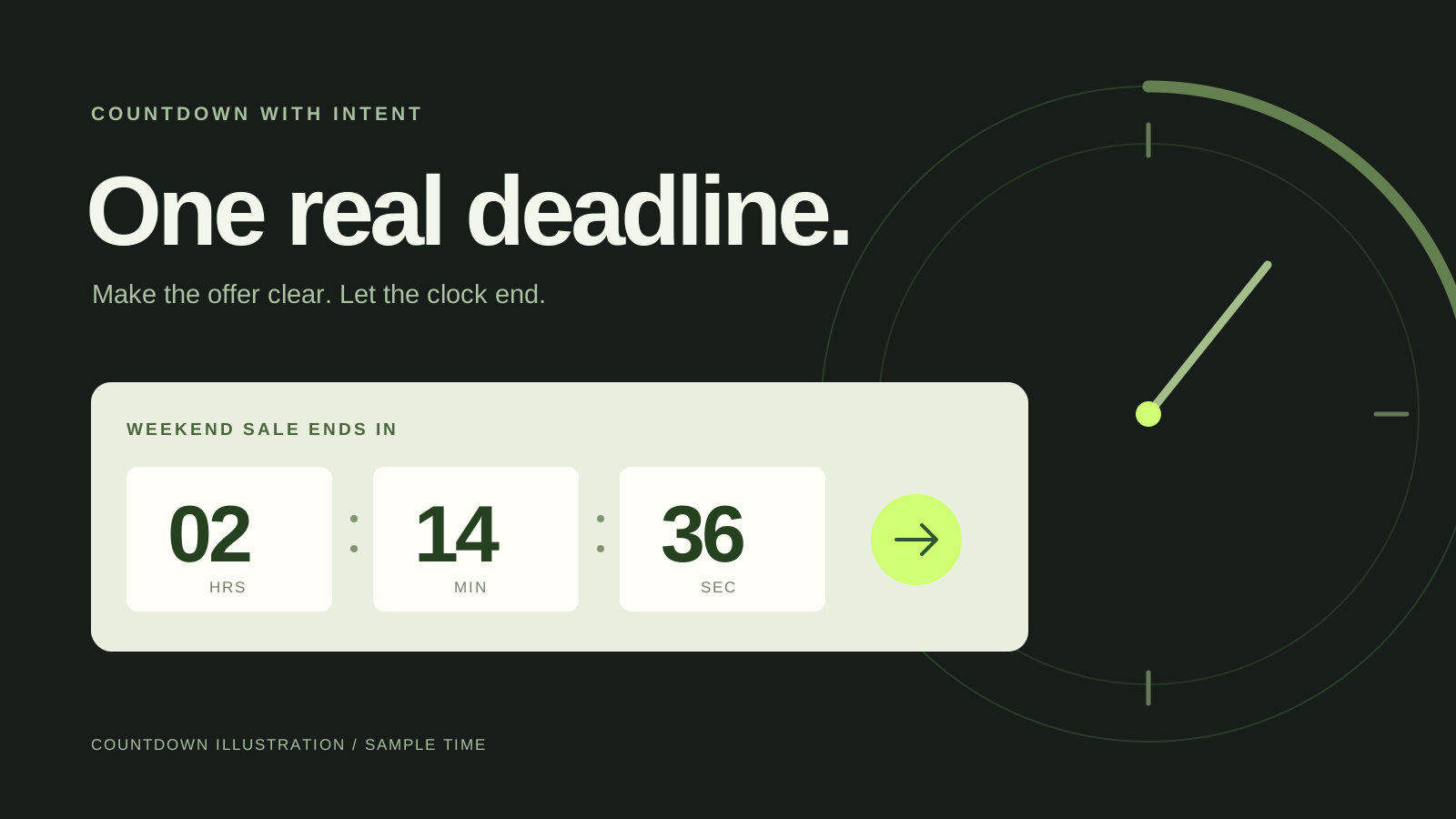
For the price-change workflow, try the SaleSwitch simulation with fictional products before connecting a store. For presentation, continue with our Shopify sale countdown guide. The timer should describe an offer you have already defined, with a real deadline and an honest scope.