Give the countdown one clear job
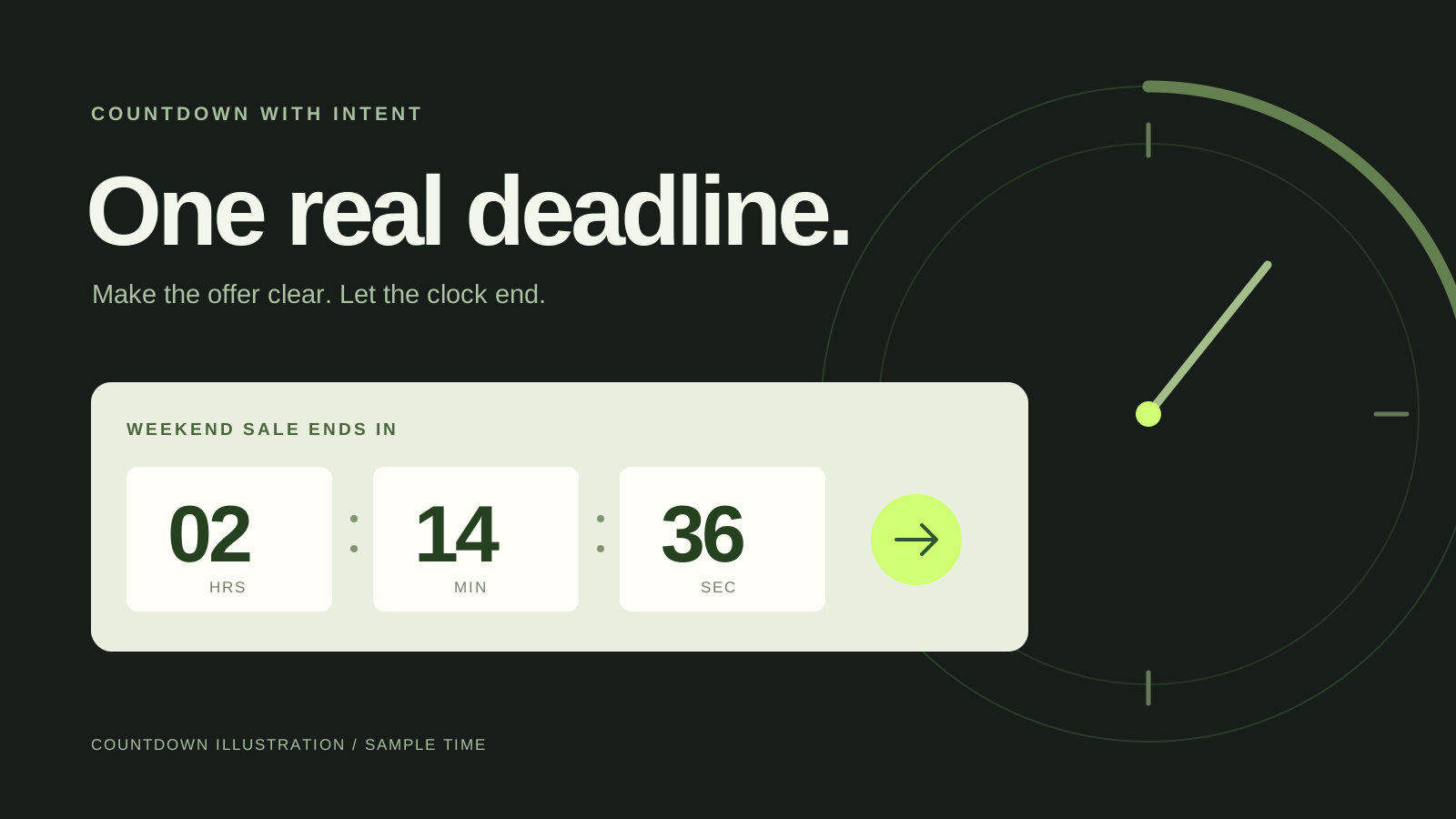
A countdown should explain a time limit that already exists. Start by writing the offer without the clock: “20% off selected Weekender colours until Sunday at 8pm.” If that sentence is unclear, moving digits will not fix it. Decide which products qualify, which variants are excluded and what the shopper should do next.
Use one fixed campaign deadline. A customer who refreshes the page or returns later should not be given a fresh window simply because they opened a new session. If you extend a promotion, make the new terms clear and update the underlying campaign as well as the message.
Keep the language specific. “Selected travel bags” is more useful than “Everything must go” when only two variants participate. The timer is part of the offer’s explanation, alongside the selling price, product choice and destination link. Treat those pieces as one experience rather than separate decoration.
Choose product placement or a store banner
Use a product-page countdown when the offer is most useful at the purchase decision. Place it near the price or buying controls without pushing essential options out of view. On mobile, check how much scrolling is needed to choose the right variant and add it to the cart after the block is present.
A store banner suits an offer that needs a broader entry point. It should name the campaign and lead to participating products. If only part of the catalogue qualifies, give shoppers a direct route to that range rather than implying the whole store is discounted. A banner with a collection link has a different job from a timer beside one variant.
Do not make the customer read both placements to understand the terms. Each needs enough context on its own. Try the fictional storefront demo to compare a product countdown with a banner and sale collection before deciding which fits your store.
Add the feature, then save the intended theme
Shopify supports app blocks and app embeds through the theme editor. Blocks let you place app content in compatible sections; embeds can provide overlays or other theme integrations. Available locations depend on the theme and app. Shopify’s guide to extending themes with apps explains both approaches.
For SaleSwitch’s product countdown, open the intended product template in the theme editor, add the Sale countdown block in a supported location, position it near the buying controls, preview it and click Save. For a store banner, activate the SaleSwitch app embed, configure its placement and save the theme. Enabling a campaign option inside the app is a separate step from saving storefront placement.
Check which theme you edited before assessing the public storefront. A saved draft-theme preview and a published theme can legitimately show different results. If you change themes later, include app placement in your launch checklist rather than assuming the new theme inherited it.
Connect SaleSwitch’s timer to a reviewed campaign
In SaleSwitch, configure the countdown while preparing a price campaign. Choose the intended variants, campaign name, dates and design, then review the pricing and storefront actions before approving them. The app includes eight clock designs, twelve colour palettes and four banner treatments in both Free and Pro.
SaleSwitch’s countdown is tied to the campaign’s real end time and confirmed participating sale variants. A variant outside the selection should not inherit a misleading sale message simply because another colour shares its product page. Review the actual variant selection, not only the product title shown in your brief.
For a banner that covers several products, the sale collection gives customers a destination for the offer. SaleSwitch creates and publishes that collection after price application is confirmed. Product cards still represent whole products, so the selected variant’s price is what needs checking when the customer opens one. You can watch the setup walkthrough before placing the block.
Test the exceptions before you send traffic
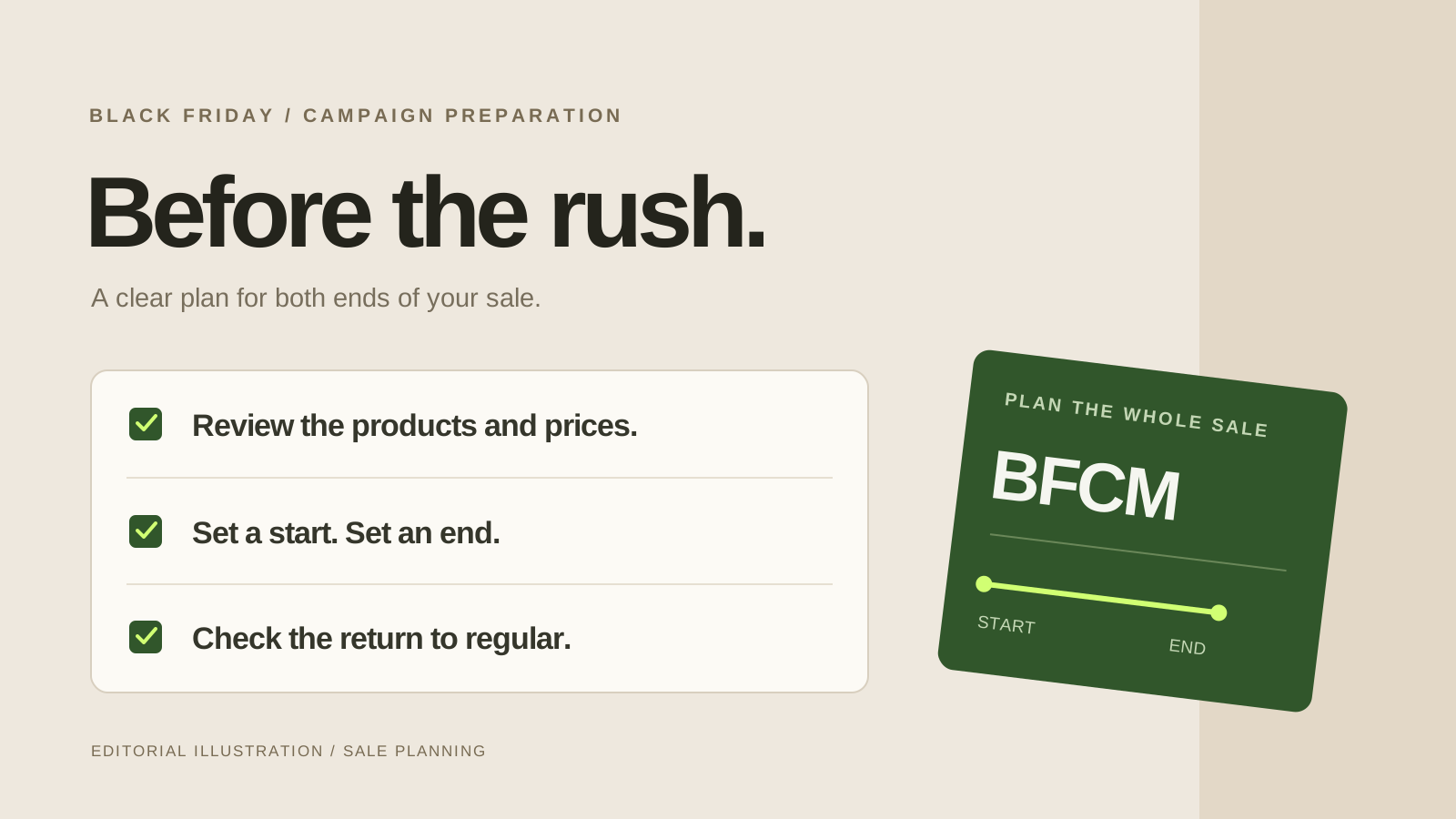
Build a short storefront test list: an included variant during the campaign, an excluded variant, a product outside the campaign, and the same participating product after the deadline. Add a small phone viewport and the widest product title you sell. These cases reveal more than repeatedly checking one ideal desktop page.
- Readability: Can you read the offer and time units without zooming? Does the clock crowd the price or variant picker?
- Navigation: Does the banner link to the intended sale destination? Can a customer return to a product and choose the eligible variant?
- Controls: If the banner can minimize or close, can shoppers use those controls without obscuring navigation?
- Timing: Does revisiting the page preserve the same deadline? What message remains when time runs out?
Check the text with someone who did not configure the campaign. Ask them what is discounted and when the offer ends. Their answer is a more direct test of clarity than whether they like the animation.
Check the ending as well as the countdown
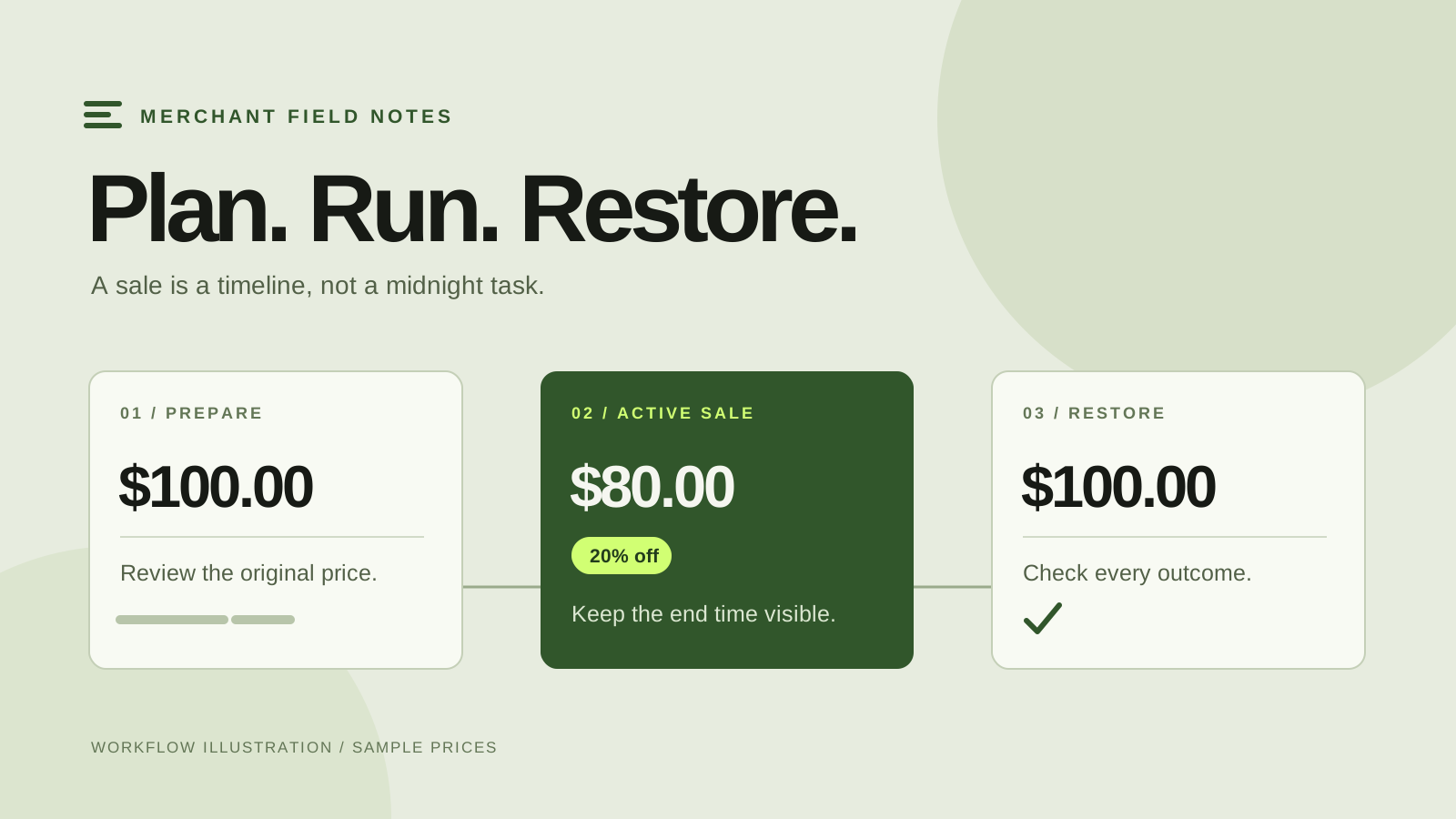
When a SaleSwitch campaign ends, its clock hides and price restoration is processed. Follow the campaign’s outcomes rather than using the missing clock as proof that every price has returned. The app restores acknowledged changes while they still match its applied price pairs; later edits are left for review.
Use the same owner for the price check and storefront cleanup, or make the handoff explicit. Review any sale navigation your team added, the landing page linked from email, and scheduled social posts. The countdown can finish correctly while an old promotion headline remains somewhere else.
Keep an approved capture of the final placement with your campaign notes. It gives the next promotion a starting point for sizing and wording. Recheck it whenever the theme or buying controls change. A practical timer is a small, accurate part of a working sale, not a substitute for a clear pricing plan. Use the sale scheduling guide to plan that workflow.