First, define one promotion everyone can repeat
For 2026: Black Friday falls on November 27 and Cyber Monday on November 30. Choose your own campaign window and write its timezone explicitly; your offer does not have to start at midnight or cover the entire weekend. Download the plain-text sale launch checklist to assign the checks below to your team.
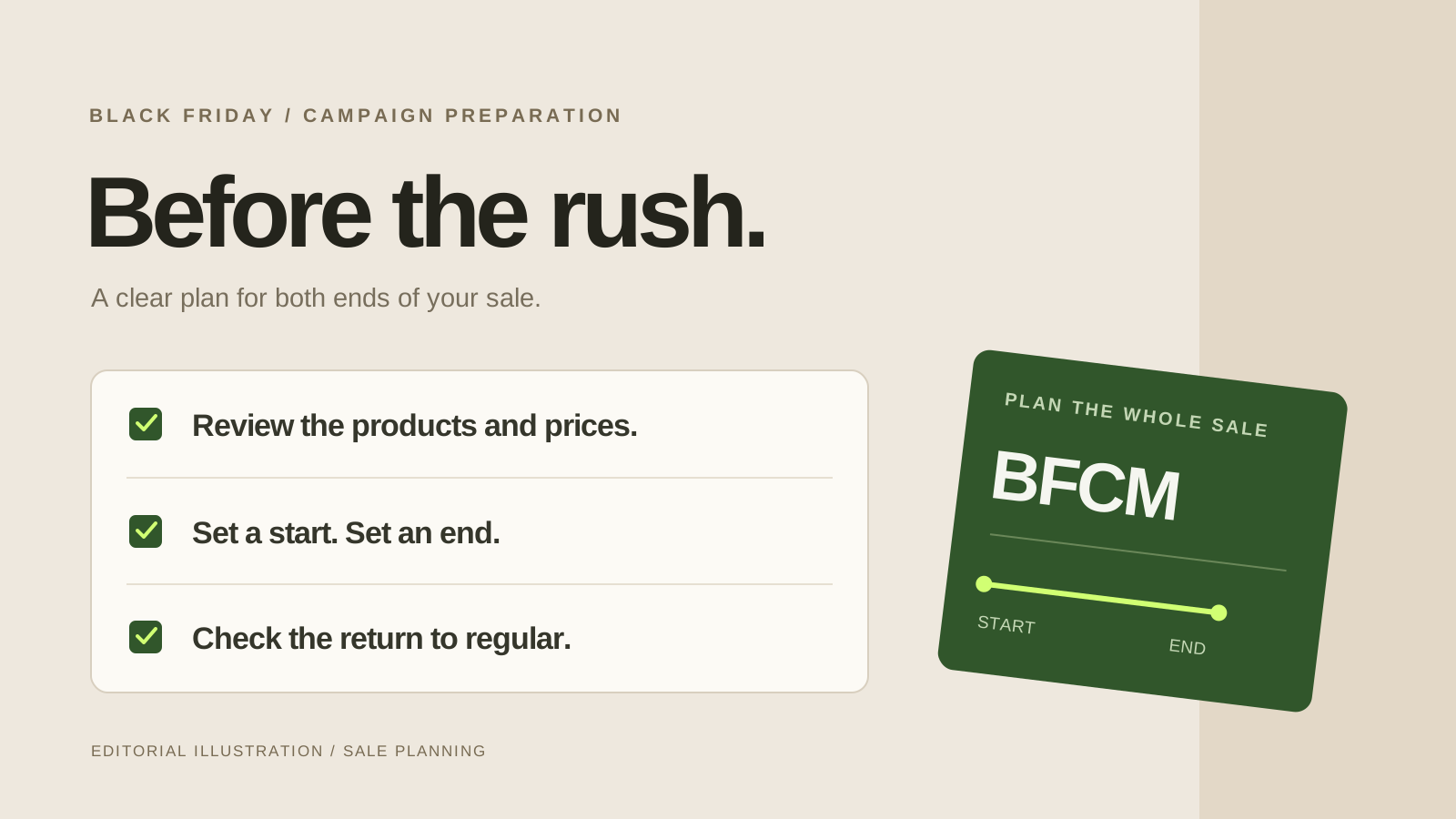
Black Friday preparation becomes easier when the team shares one precise description of the offer. Write the included range, excluded variants, percentage or offer condition, start and end timestamps, timezone and destination page. Name the person who can approve a change if something unexpected happens during the event.
Separate the customer promise from the internal tasks. “20% off selected travel bags until Monday evening” is the customer message. Reviewing variant prices, saving the banner placement and checking restoration are operating tasks. Keep both on the same campaign brief so a last-minute wording change does not drift away from the actual offer.
Choose the pricing method now. A catalogue markdown and an automatic discount need different setup and checks. Read the comparison of sale prices and automatic discounts before building overlapping offers. Do not assume a discount badge means an existing code cannot reduce the final price further.
Before launch: make the selection reviewable
Build a list that a teammate can check without guessing. Include variant names or SKUs, current selling prices, existing comparison prices, proposed sale prices and explicit exclusions. Flag items already on sale. Add a review date because an accurate selection today can become outdated if the team keeps editing prices before launch.
- Confirm each intended colour and size instead of assuming the whole product qualifies.
- Review the least expensive selected item and any item close to your price floor.
- Check existing promotions that touch the same products.
- Record who can change campaign prices while the event is active.
- Keep a dated reference of the original price pairs.
Shopify offers product CSV exports as a reference or backup. Keep the untouched copy separately from planning worksheets. After the event, compare differences deliberately; a full re-import can also replace later legitimate edits, so it is not an automatic recovery plan.
Before launch: make every message agree
Read the collection heading, product offer, banner, email subject and social copy side by side. Each should describe the same eligibility and deadline. Prefer a direct link to participating products over a broad homepage link that makes shoppers search for the advertised range.
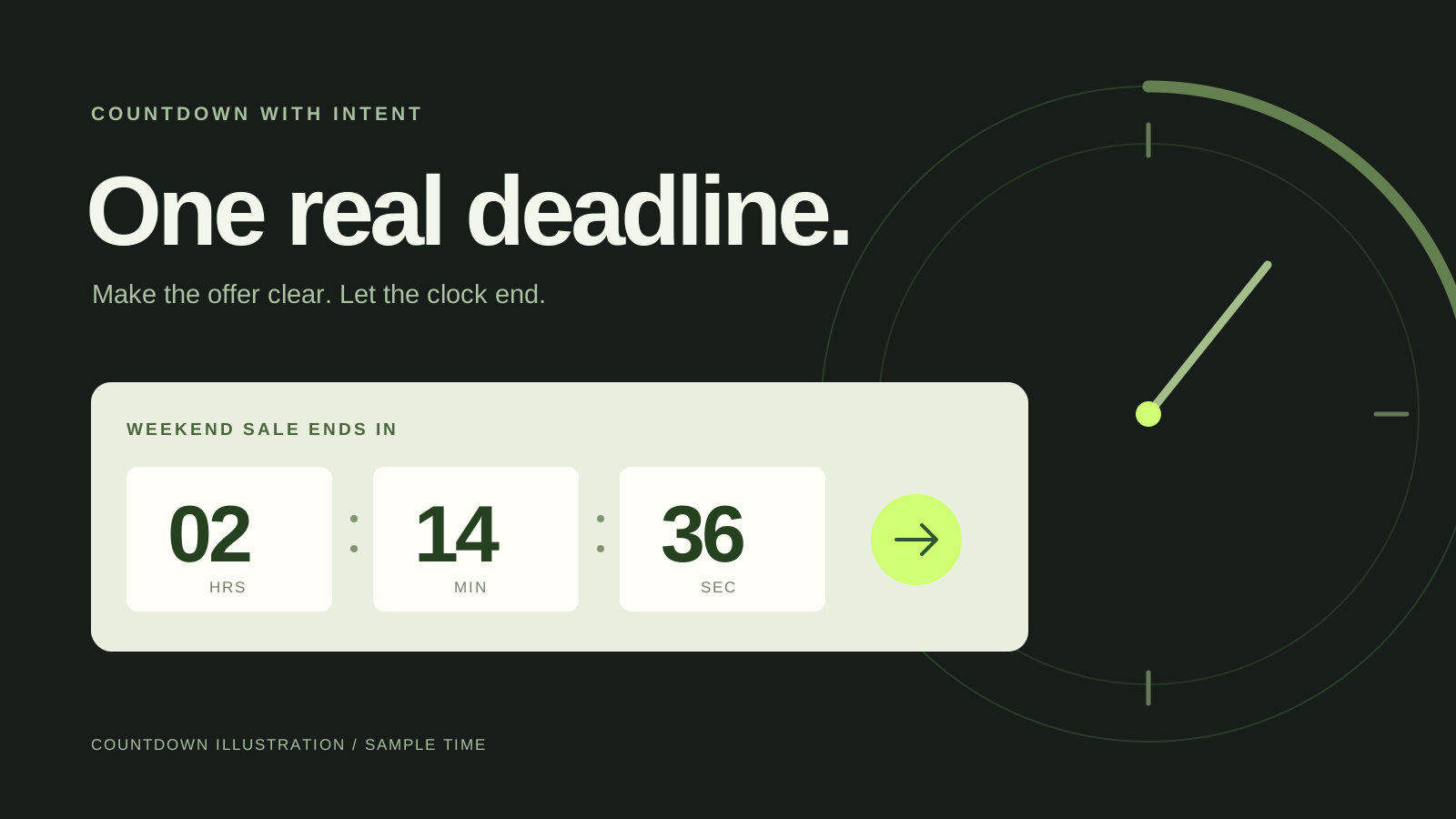
If a countdown is part of the campaign, use the real end time. Preview it on a phone with a long product name and the variant picker open. Keep its units legible, and check that closing or minimizing a banner does not restart the clock. Use the countdown setup guide for a placement checklist.
App installation and storefront placement are separate tasks. Shopify’s theme app guide covers app blocks and embeds. Save the placement in the intended theme, then inspect the actual customer view. Put any navigation link your team creates on the cleanup list as well.
Rehearse the campaign before the busy window
Choose a small set of representative products for a rehearsal. Cover an included variant, an excluded variant and an already-discounted item. Write the expected product, cart and checkout amounts first, then test them. If the offer uses a minimum spend, add a basket just below that threshold and one that qualifies.
For a scheduled catalogue markdown, SaleSwitch lets you review a percentage campaign, optionally add a countdown and collection, and inspect results after approval. You can try the sequence in the fictional demo or follow the recorded walkthrough. Neither a simulated result nor a screenshot of a clock proves a real store is ready; use a deliberate store check before the event.
Have the person monitoring launch take part in the rehearsal. They should know where applied, skipped and flagged outcomes appear, what the team considers an acceptable result, and how to reach the decision-maker. Resolve unclear ownership before the traffic arrives.
At launch: confirm results before widening promotion
- Check execution. Confirm the campaign has started and inspect applied and skipped results. A scheduled price update can take time across multiple variants; avoid promising an instant catalogue-wide switch.
- Check one included variant. Compare its product-page and cart price with the approved numbers.
- Check one exclusion. Confirm its price and sale message remain appropriate.
- Follow the campaign link. Verify the advertised collection or landing page contains the intended range.
- Check an existing offer. Test the welcome code or automatic discount that could affect the same basket.
- Record exceptions. Give unresolved items an owner before changing the campaign or sending additional traffic.
If you use Shopify’s native discount tools, review active dates and timezone settings. Check the effective customer offer rather than relying on the campaign name. Keep screenshots and notes tied to specific test cases, so someone taking over later can tell what was checked.
After the deadline: restore, clean up and learn
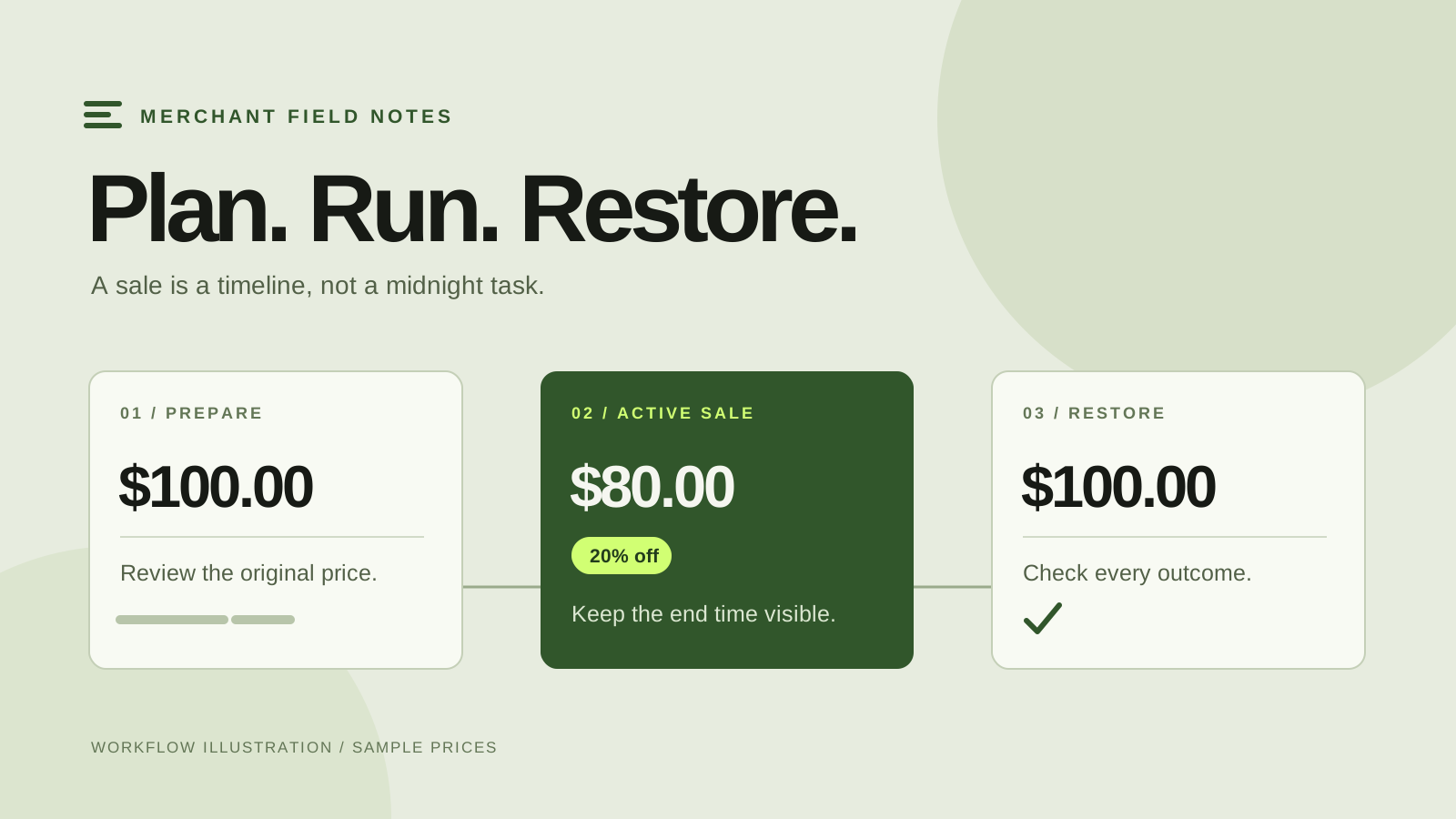
Set an end-of-sale appointment with the same seriousness as launch. Review price outcomes, the countdown, the sale collection and the destinations linked from promotions. Pause or update messages that still describe an expired offer. Retain a short list of unresolved rows and assign each one to a person.
SaleSwitch restores acknowledged price changes while the current price pairs still match its applied sale values. Later price edits are preserved and flagged for review, so the team can decide what should remain. Its sale collection stays available; the app removes its tracked selections while preserving merchant additions. Check navigation links your team added. End active campaigns and confirm restoration before uninstalling the app.
Save the final brief with three notes: what customers saw, what needed intervention and what you will change next time. Avoid treating gross sales alone as proof that the promotion worked; your own review should also consider the offer’s costs and operational effort.
For a repeatable catalogue-price workflow, explore SaleSwitch’s current plans. Free includes two sales per UTC month and up to 50 variants per sale. Pro is $9.99 USD per month with up to 200 variants per sale. Start with the selection size and workflow you actually need.