First identify what changed during the promotion
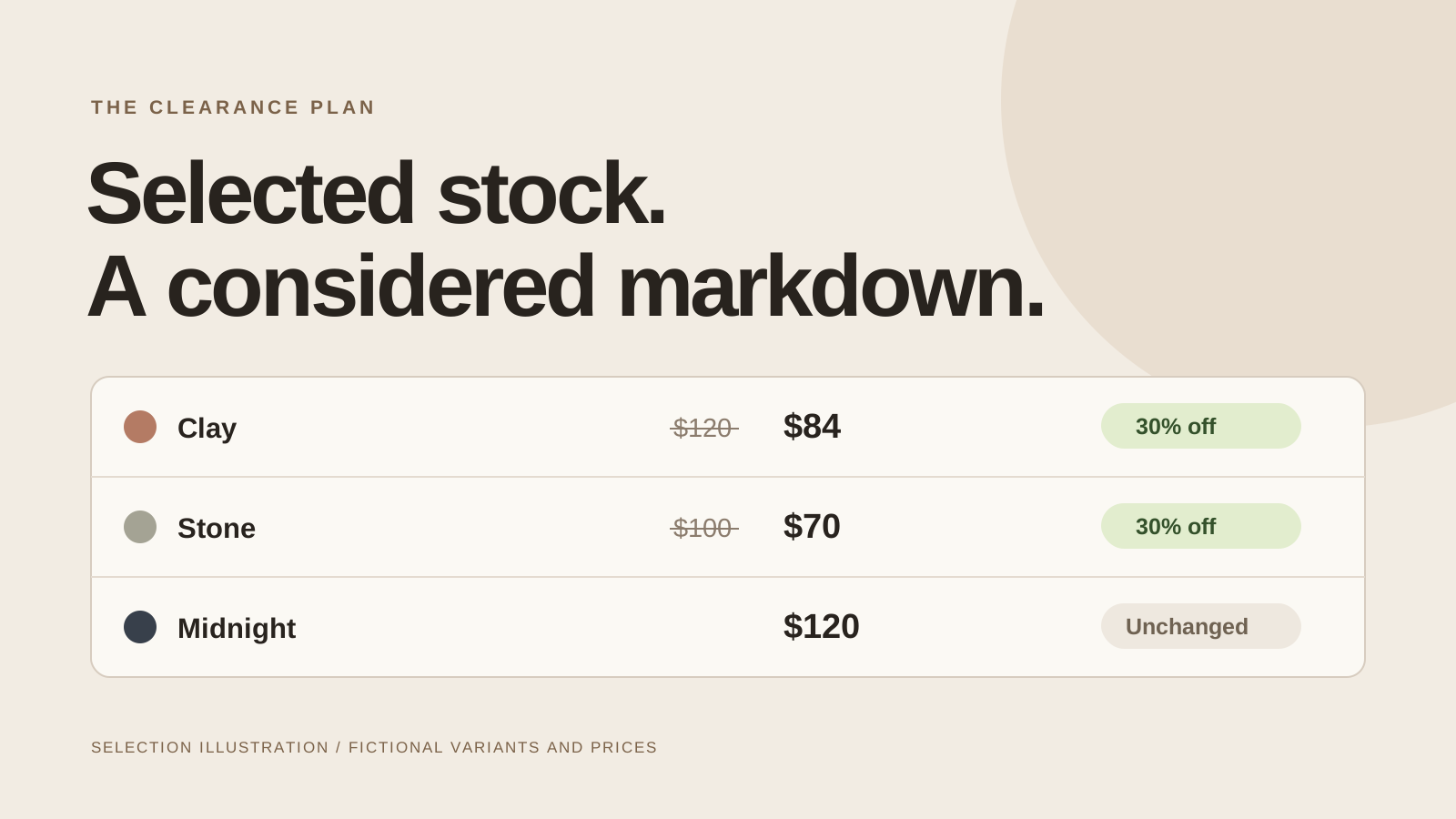
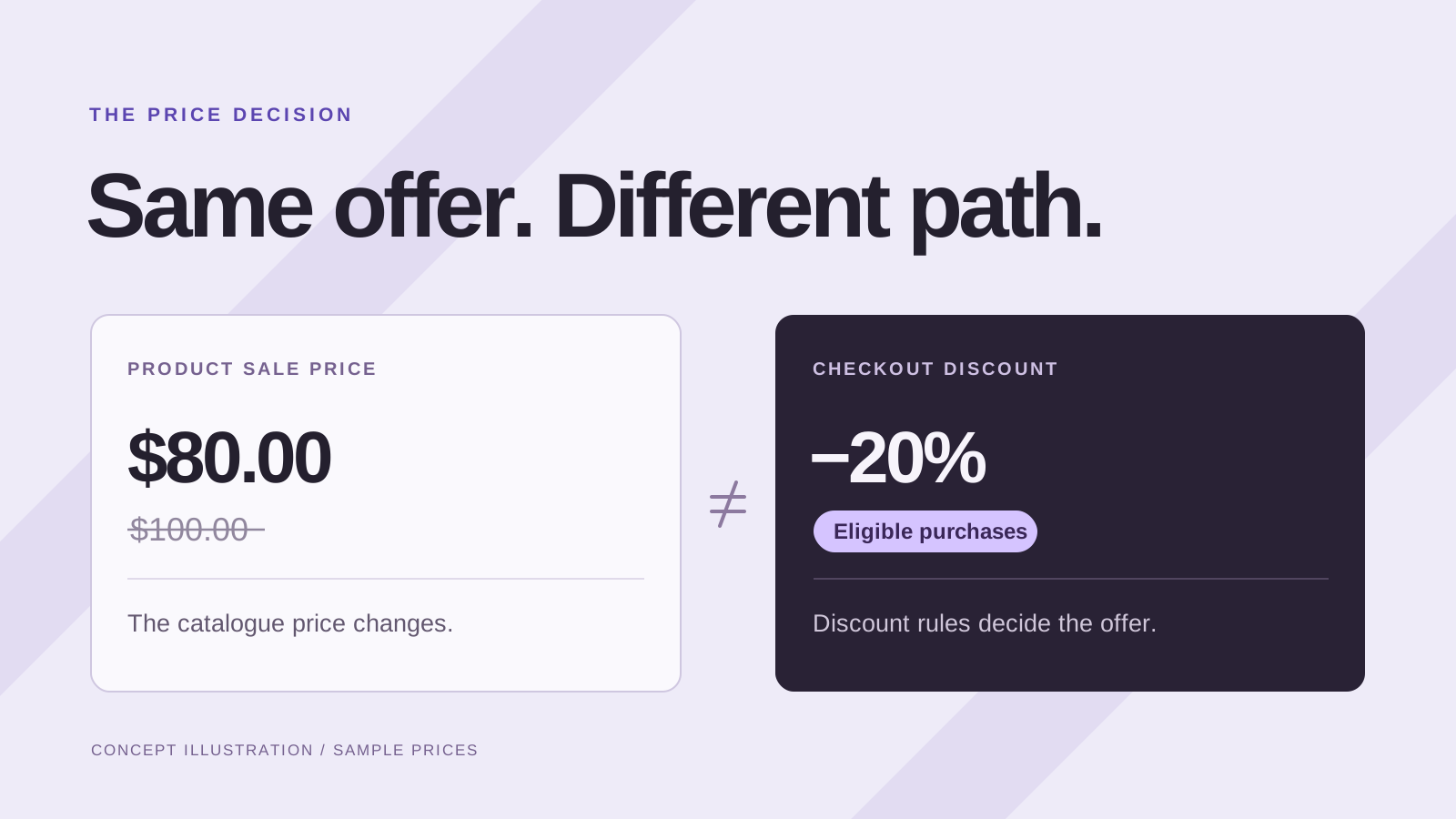
Restoring prices after a Shopify sale starts with one question: did you change catalogue prices, create a discount, or do both? Ending a discount rule does not reverse a product price edit. Returning a product to its regular price does not automatically end a separate welcome code.
For a native Shopify discount, inspect its active dates and current status using the amount-off discount instructions. For catalogue markdowns, review the selling price and compare-at price together. Our comparison guide explains which customer experience each method creates.
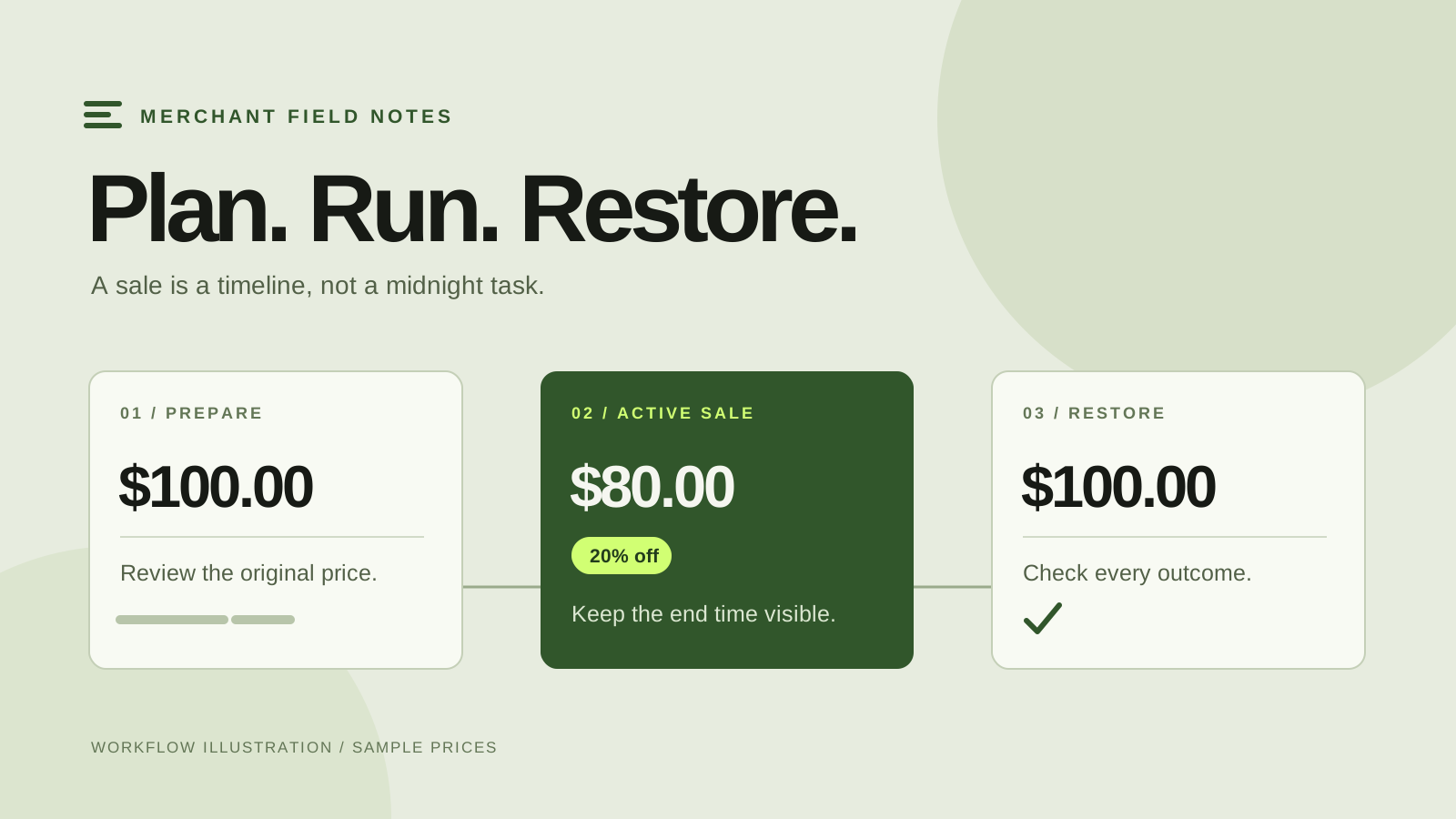
Make a short closeout list: affected variants, intended return prices, campaign outcomes, other offers, countdown placement and collection links. Give each unresolved item an owner. A sale looking finished on the homepage is not enough to establish that every variant has the intended price.
Find the saved selling price and compare-at price
Use the pre-sale record you actually saved: a reviewed campaign, a dated product export or another reliable catalogue record. Shopify supports a product CSV export. An export taken after the sale begins shows the later state; it cannot recreate an earlier price you never recorded.
Do not treat the current compare-at value as a complete backup. An item may already have had a comparison price before your campaign. Shopify’s sale-pricing documentation explains the price pair, including that theme presentation depends on its values. An originally empty compare-at field and a stored numeric value are different return states.
For a straightforward manual correction, edit the affected variant’s Price and Compare-at fields and save. For a larger selection, review the Shopify bulk editor. Decide the correct values first, and match the variant rather than relying only on a shared product title.
Compare saved, applied and current values before restoring
This fictional example shows why “put everything back” can be the wrong instruction. Each price pair below is selling price / compare-at price.
| Saved before sale | Applied for sale | Current pair | Next decision |
|---|---|---|---|
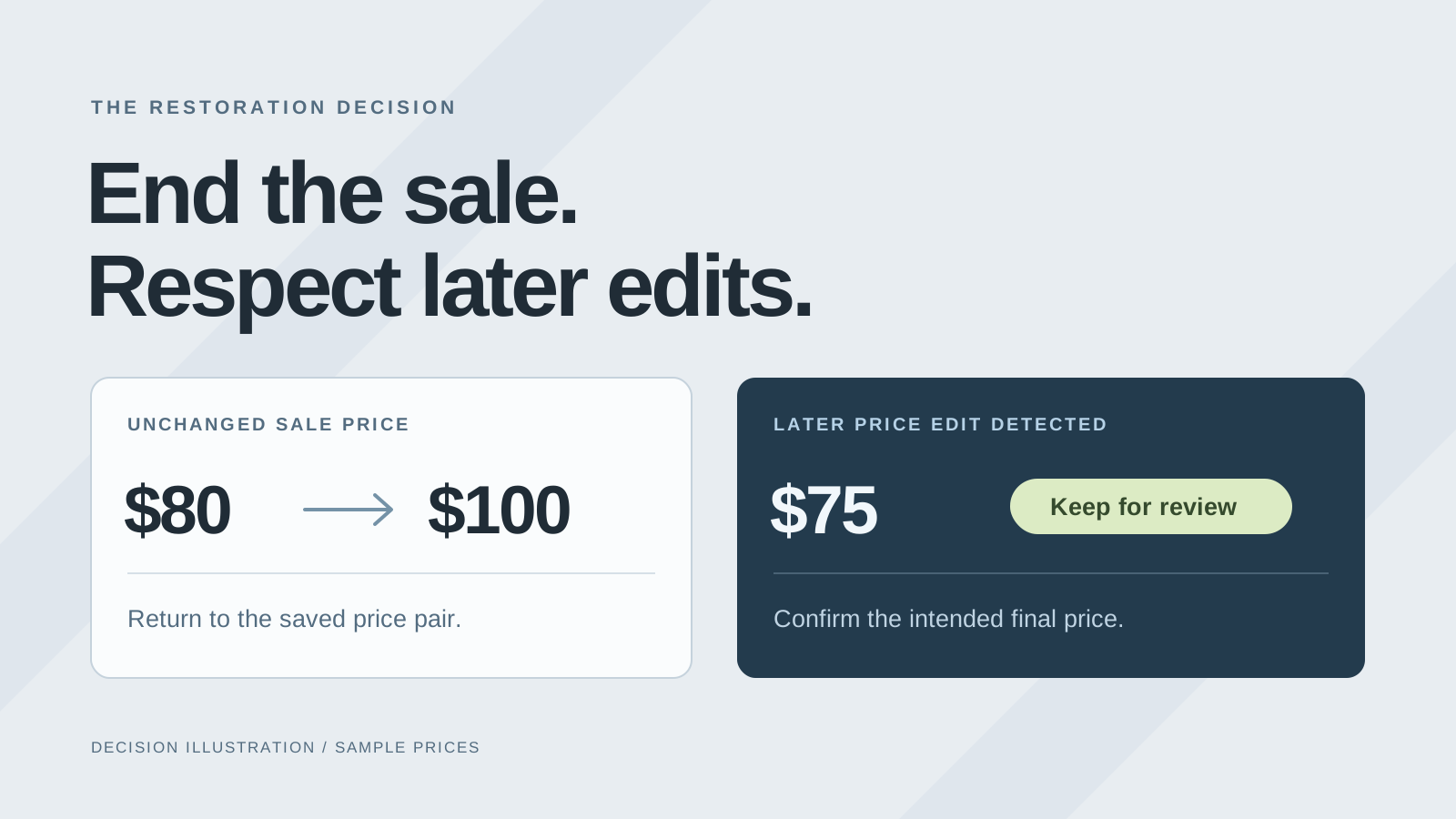
| $100 / empty | $80 / $100 | $80 / $100 | Return to the saved pair |
| $100 / empty | $80 / $100 | $75 / $100 | Review the later edit |
| $100 / empty | No confirmed change | $100 / empty | Verify; do not invent a rollback |
The $75 price could be an intentional clearance decision made during the event. Ask the responsible teammate or inspect your change record before replacing it. Check both fields: matching the sale’s selling price alone does not establish that the full pair is unchanged.
Coordinate with any other person, integration or pricing app that can edit the same variants. Avoid running another price campaign while you are reconciling the first one. Record each exception and its agreed final pair so the next operator can understand the decision.
Inspect the restoration outcomes in SaleSwitch
SaleSwitch — Sale Scheduler schedules percentage changes to base catalogue prices in shop currency. It saves acknowledged original price pairs and restores them when the current pair still matches the sale pair it applied. Detected later edits are preserved and flagged for review.
At the campaign end, inspect Your sales and refresh the results as work completes. Updates are queued and can take minutes across a larger selection or during API retries. Distinguish a scheduled end from confirmed restored rows, and separate detected later edits from failed or skipped operations that need investigation.
Resolve flagged rows using the intended current price. If a later edit should remain, the app’s keep-current-prices action can record that decision. If the old pair should return, review the variant before correcting it. Confirm the resulting values in Shopify and on the storefront; do not infer success from a completed countdown.
The app does not edit fixed Markets or B2B prices, or manage checkout discount codes. Review those separately when relevant. For a future campaign, the scheduling guide shows how to prepare this return path before launch.
Use an old export as evidence, not an automatic reset
A full pre-sale CSV can contain other fields that changed legitimately during the promotion. Re-importing it broadly may overwrite information you intended to keep. Shopify documents how matching handles, included columns, blanks and variant data interact in its CSV import and overwrite guidance.
Compare the old record with current data and prepare only the corrections you mean to make. Follow the required column dependencies rather than trimming a file by guesswork. Keep an untouched copy of the reference export and a current export before a larger correction, then inspect the result on representative variants.
Finish with the storefront, then close the campaign
- Check restored price pairs for representative variants and every unresolved exception.
- Confirm a separate code or automatic discount is no longer offering an unintended reduction.
- Check that the countdown has ended and remove expired promotion messages.
- Open sale collection and navigation links on mobile and desktop.
- Save the outcome list and the owner of any remaining action.
SaleSwitch’s countdown follows the real campaign deadline and hides at the end; its product block or banner still requires placement and saving through the theme editor when you set it up. See Shopify’s theme app instructions. At collection cleanup, SaleSwitch removes app-tracked selections while retaining the collection and merchant additions. Check navigation links you created separately.
Restore active sales and confirm the results before uninstalling SaleSwitch. Uninstalling removes the app’s access, so it cannot subsequently restore your prices. Leave any unresolved price correction with a clear owner and reference record before closing the work.