Start with the stock problem, then write the offer
A clearance sale works best when the selection explains the promotion. Perhaps last season’s Clay bags need space on the shelf, while Midnight remains a regular seller. “30% off selected Clay and Stone variants through Sunday” gives the team a clearer job than “discount the bag collection.”
Record the variants, available stock, current selling prices and the lowest price you are prepared to accept. Consider the costs your own business carries, including fulfilment and any other offers that could apply. A percentage markdown is a pricing decision; it does not tell you whether an order will meet your margin target.
Choose a practical measure for your own review, such as units remaining in the selected colours at the deadline. Keep that selection fixed in the record so later additions to the range do not distort the comparison.
Decide whether this is a temporary event or a permanent markdown. A temporary event needs a return price and an end-of-sale check. A permanent clearance price needs a separate catalogue decision rather than a timer that repeatedly promises an ending.
Choose catalogue sale prices or a conditional discount
If shoppers should see a lower product price before adding to cart, use a catalogue sale-price workflow. Shopify describes the selling price and higher compare-at price in its sale-pricing guidance; your theme controls their presentation. Use an honest comparison price.
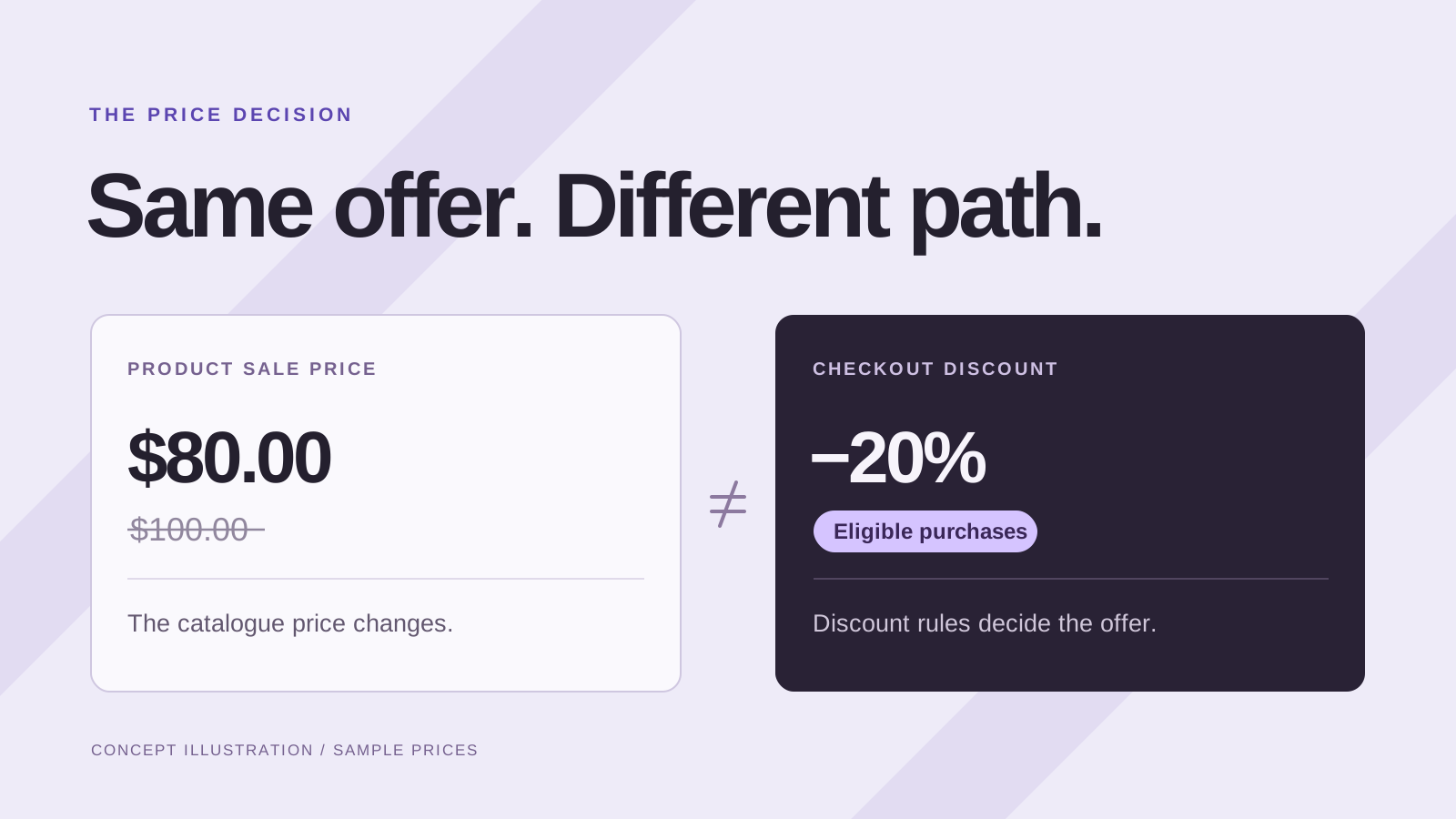
If the offer depends on a qualifying basket, customer or code, consider Shopify’s amount-off discounts instead. Our sale price versus automatic discount comparison explains the difference. A clearance collection alone does not change a price.
SaleSwitch — Sale Scheduler fits temporary percentage markdowns to base catalogue prices in shop currency. It does not create checkout discount codes or automatic-discount rules, or edit fixed Markets and B2B prices. Check relevant markets and sales channels: changing a base price can affect prices derived from it.
Review colours and sizes as separate decisions
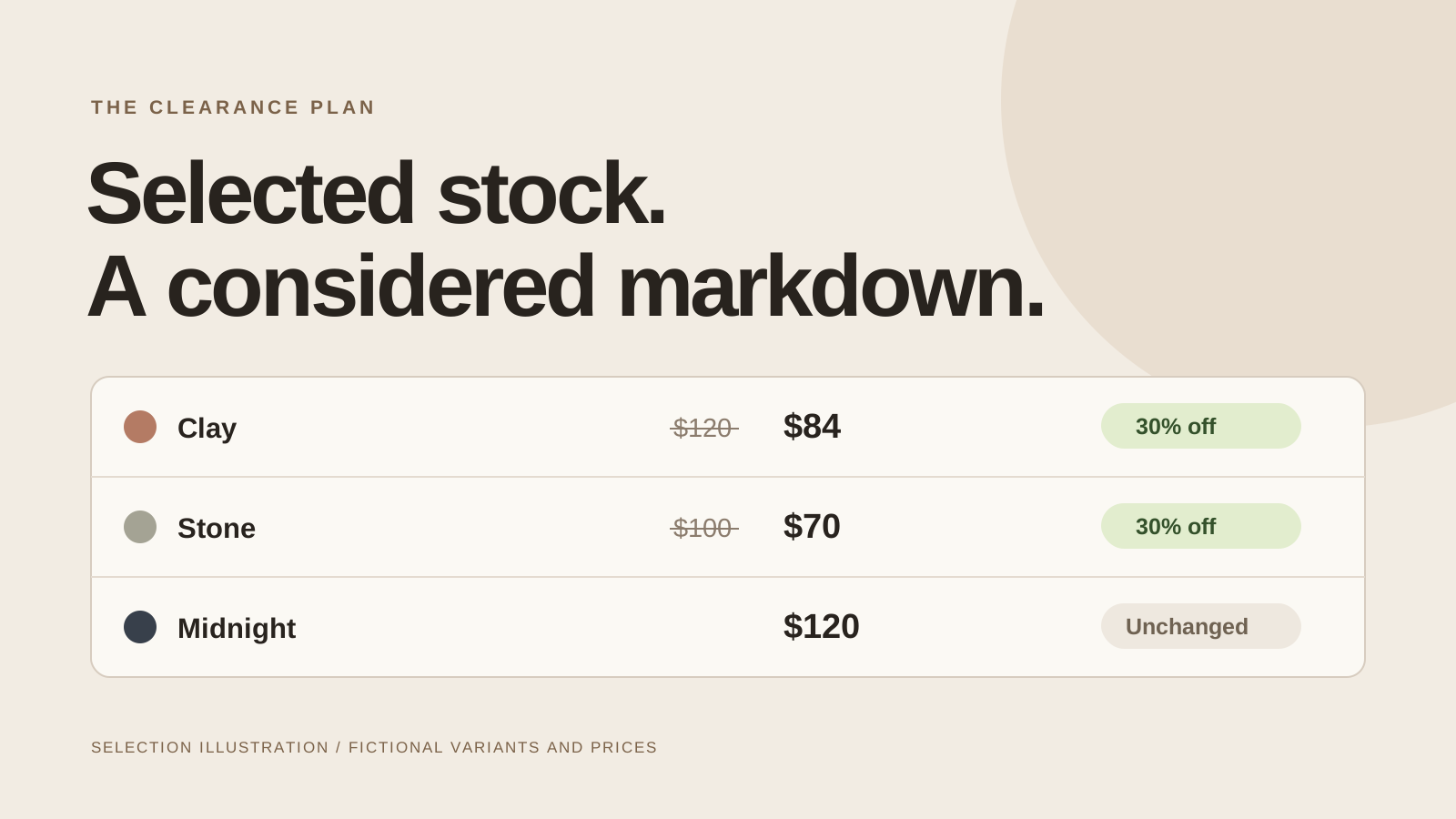
Here is a fictional selection. The numbers illustrate the review; they are not a pricing recommendation.
| Variant | Current price | 30% markdown | Decision |
|---|---|---|---|
| Weekender / Clay | $120.00 | $84.00 | Include |
| Weekender / Stone | $100.00 | $70.00 | Include after margin review |
| Weekender / Midnight | $120.00 | Unchanged | Exclude |
Check variants already on sale separately. Applying another reduction to their current selling price can create a deeper markdown than the campaign headline suggests. Retain a dated reference: Shopify lets you export selected or filtered products. Keep that export for comparison rather than assuming it should be imported unchanged later.
In SaleSwitch, choose products and individual variants, or take a snapshot of an existing collection. Review that snapshot carefully: products added to the source collection later do not automatically enter the campaign. Record the exclusions beside your selection.
Schedule a campaign with a clear end
Give the campaign a useful name, such as “Clay and Stone clearance.” Set the percentage, start and end dates, then inspect each original and proposed price. Check the timezones shown during setup and review. Approve only when the selection and numbers agree with the brief; revisit the review if either changes.
Choose who will monitor launch and who will check restoration. SaleSwitch queues price updates at the scheduled time. Larger selections and API retries can take minutes, so a scheduled status is not proof that prices have applied. Inspect the confirmed results in Your sales before widening promotion.
For a first campaign, rehearse a small selection covering an included variant, an exclusion and an existing markdown. The scheduling guide covers that preparation in more detail.
Make the sale destination match the actual selection
An optional SaleSwitch sale collection groups products after successful price application. Check the resulting collection before linking to it; creation and publication can take time. Collection cards represent products, so one card may lead to both discounted and full-price variants. “Selected colours” is clearer than claiming every option is reduced.
Add navigation or campaign links separately. Open each destination on a phone, choose the advertised variant and check its cart price. Also try an existing welcome offer if a shopper could use it. The advertised saving and the final amount should tell a consistent story.
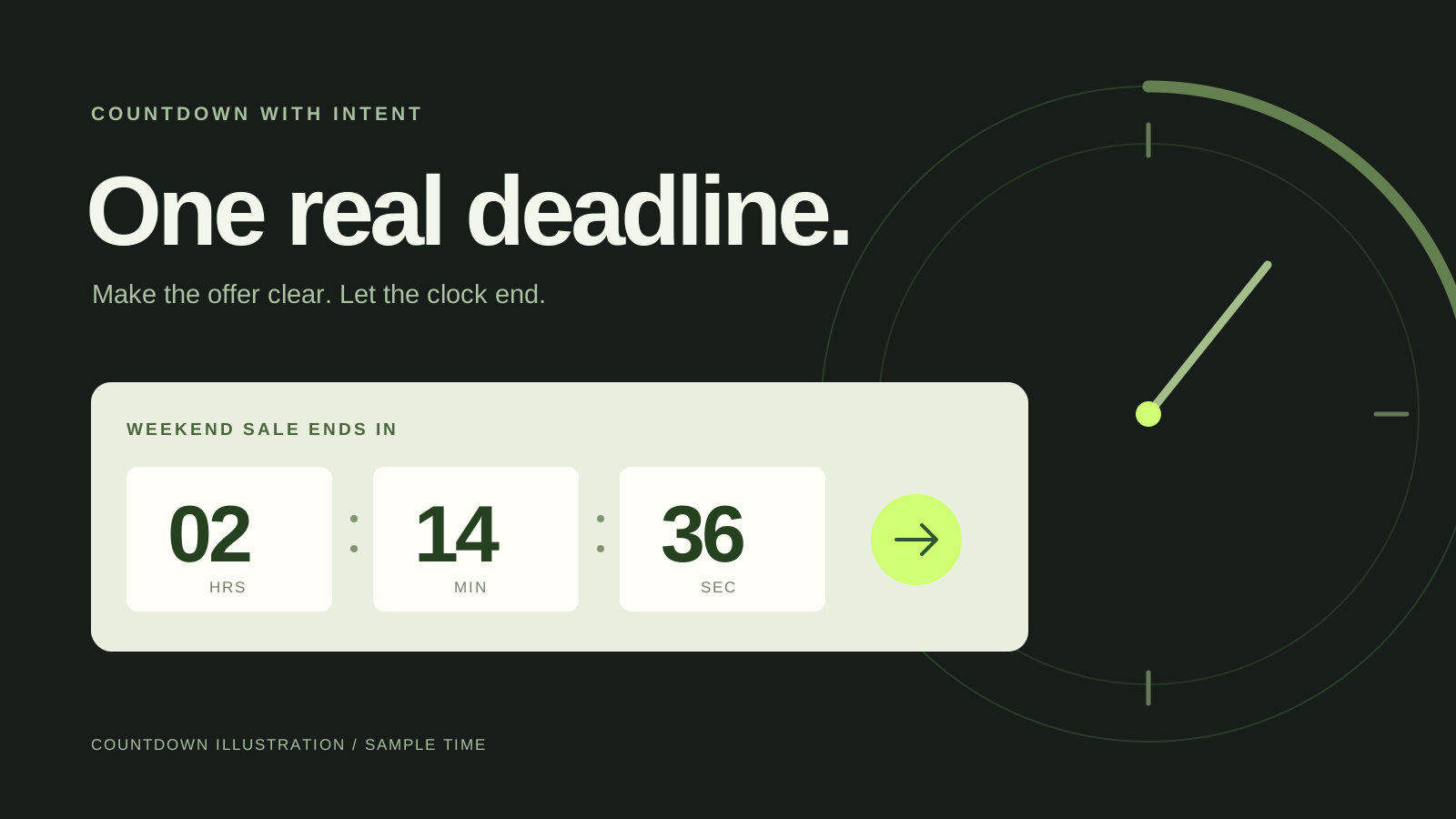
For a genuine timed event, you can add SaleSwitch’s product countdown block in a compatible theme section or activate its store banner embed. Placement and saving happen in the theme editor; approving the campaign does not place the timer for you. Follow Shopify’s app block and embed instructions, then test the published theme. The countdown guide covers placement and deadline checks.
Use this closeout checklist at the deadline
- Review application and restoration outcomes for the intended variants.
- Check an included price pair and a full-price exclusion on the storefront.
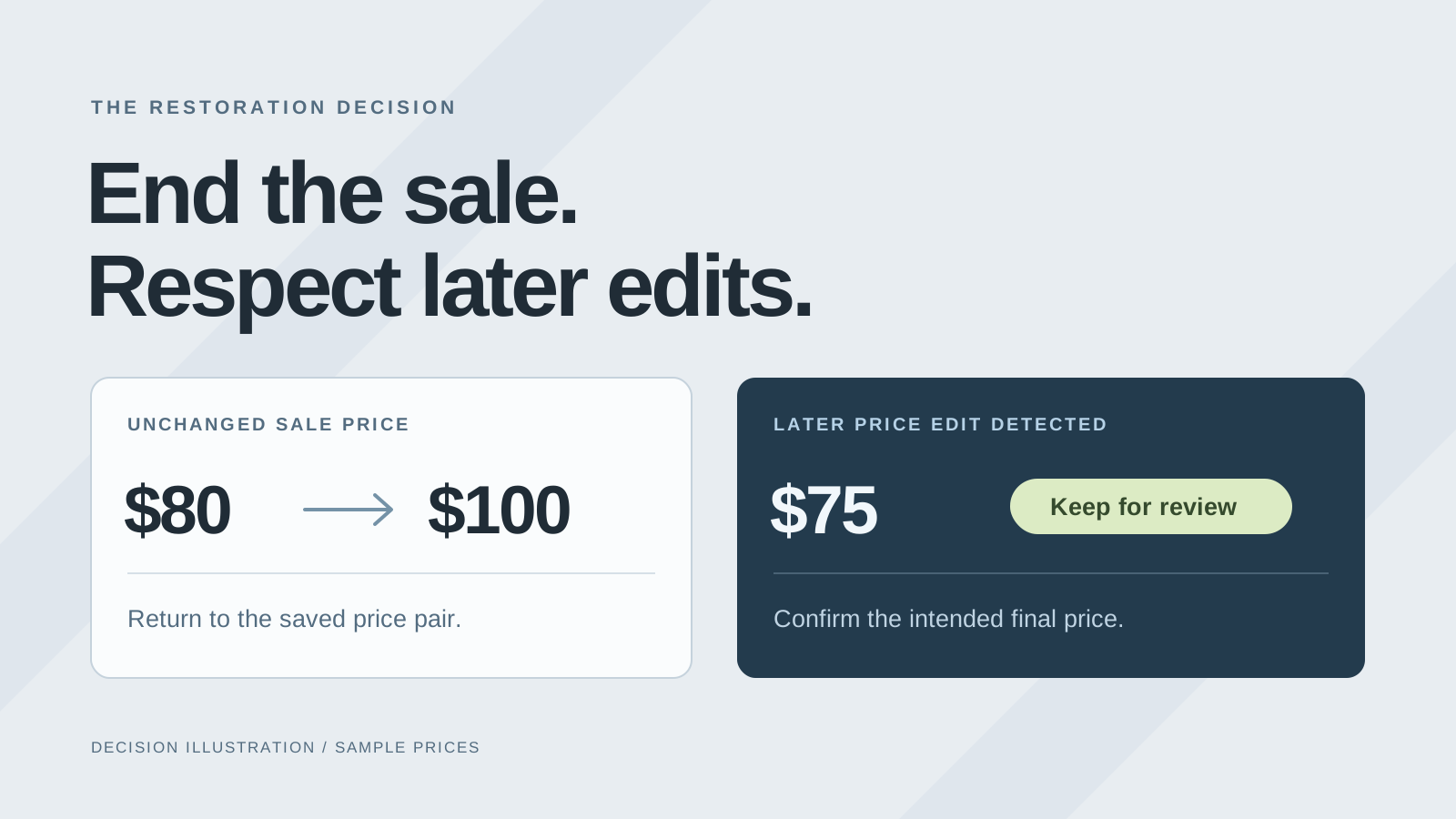
- Assign detected later price edits for review instead of overwriting them from an old list.
- Confirm the countdown has ended and update expired promotion messages.
- Check the sale collection and any navigation links your team added.
SaleSwitch saves acknowledged original price pairs and restores them when current values still match its applied sale pair. Detected later edits are preserved and flagged for review. Its collection cleanup removes app-tracked selections while retaining the collection and merchant additions. Restore active sales and confirm the results before uninstalling, because restoration requires the app’s access.
Our price-restoration guide shows how to resolve exceptions. Save the final selection and remaining-stock notes so the next clearance decision starts from evidence.